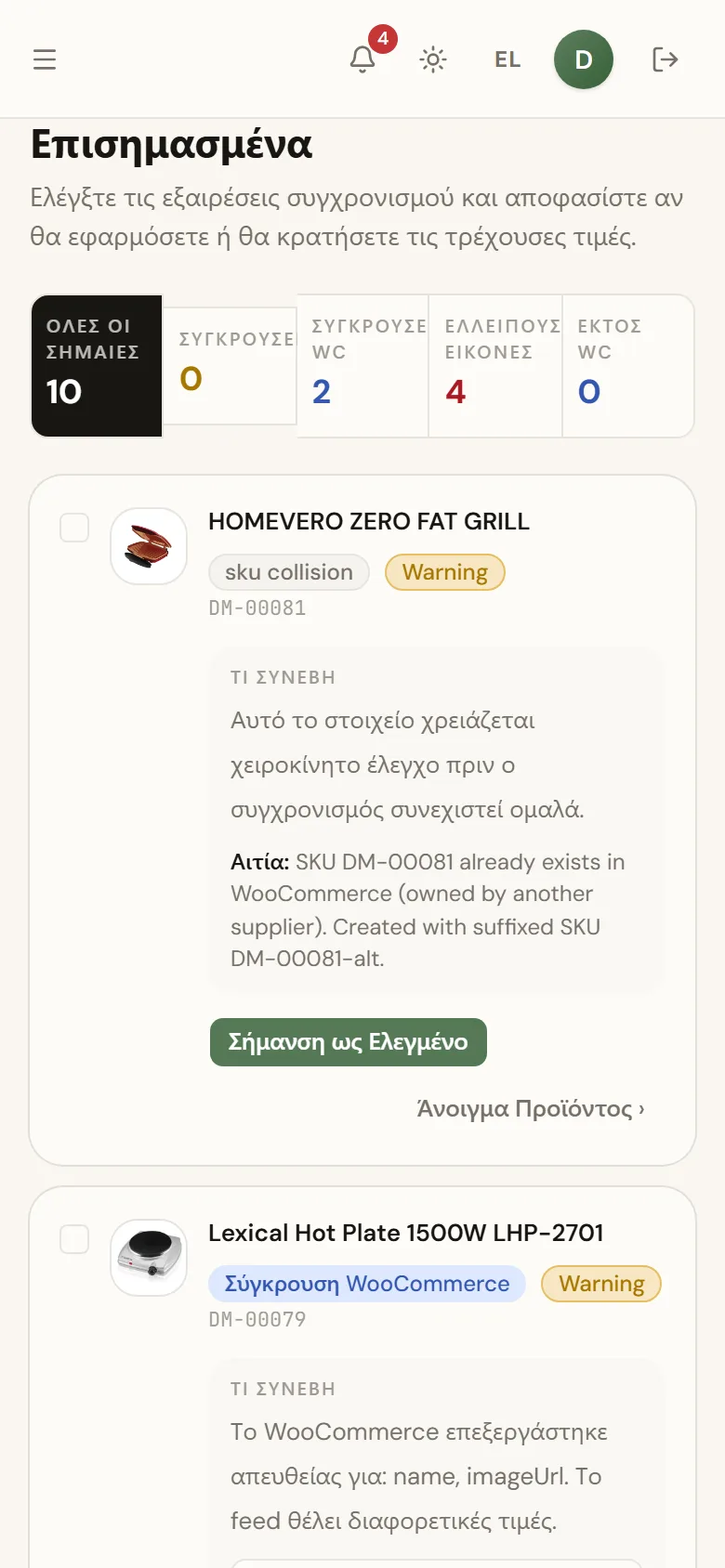

Flagged Items
When a sync hits something it can't safely decide on its own, it does not change the product; it flags it and waits for you. The Flagged page collects all of these open items.
When a sync hits something it can't safely decide on its own, it does not change the product; it flags it and waits for you. The Flagged page collects all of these open items.
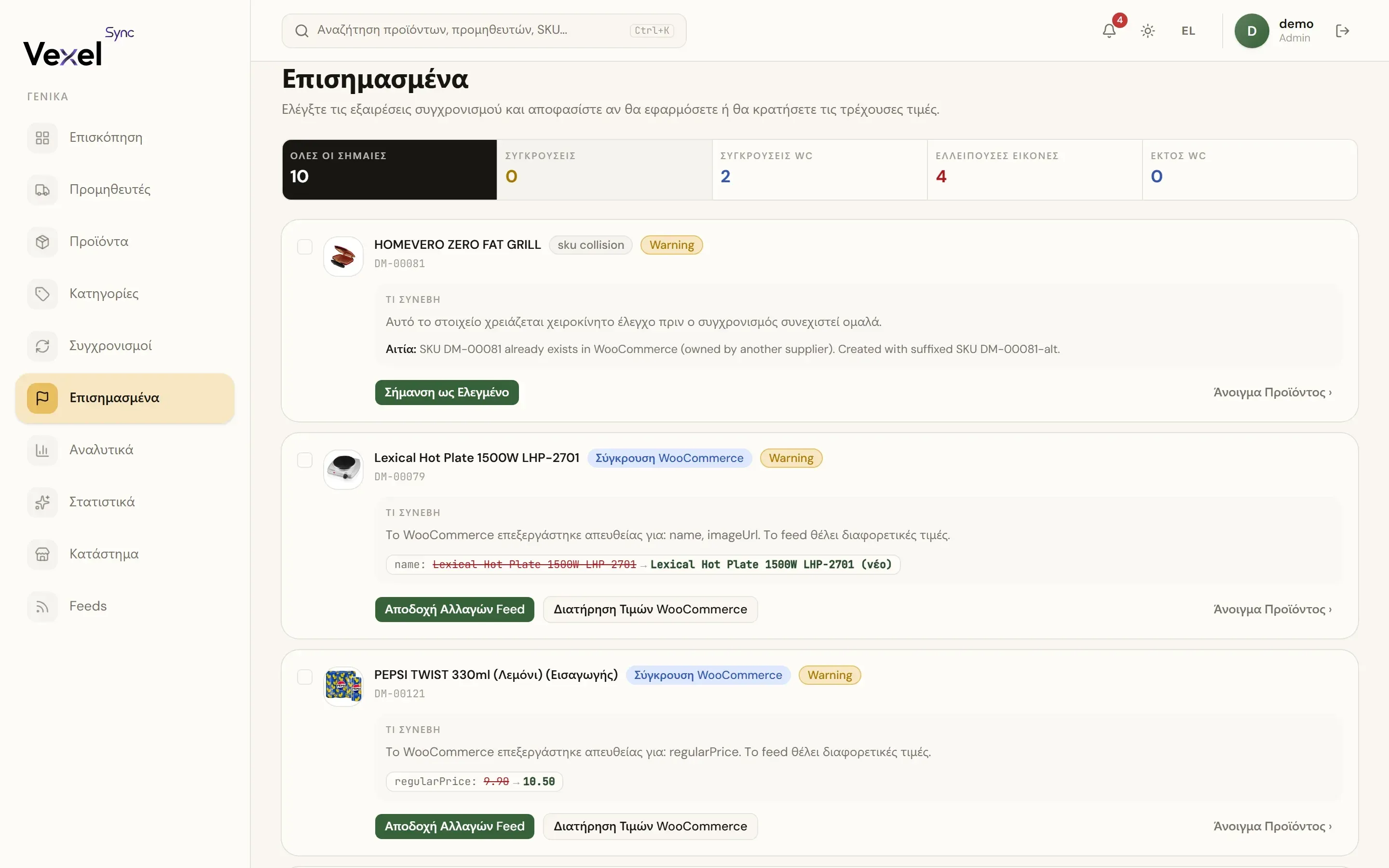
Flag types
| Flag | What it means |
|---|---|
| Conflict | The feed wants to change a field you've protected |
| WooCommerce Conflict | Someone edited the product directly in WooCommerce and the feed wants different values |
| WooCommerce Missing | The product exists in the feed but its linked WooCommerce product was deleted |
| Image Missing | The supplier's image couldn't be used or doesn't exist |
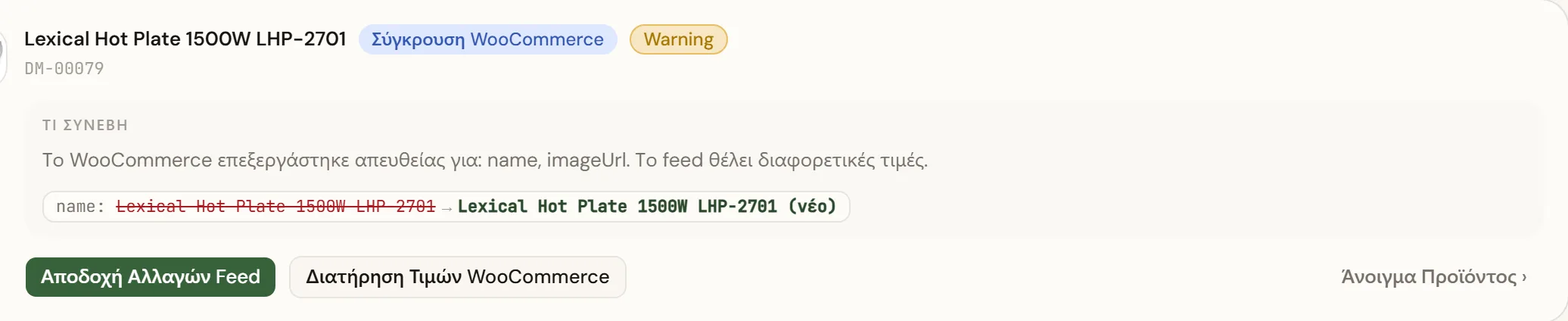
Each card explains What happened, the Reason, and often a Diagnostic.
Resolving
Depending on the case, the main options are:
- Accept Feed Changes: the supplier's values are applied to WooCommerce.
- Keep Current Values (or Keep WooCommerce Values): keep what you have now.
- Restore Product: for "WooCommerce Missing", recreates or relinks the product.
- Upload Image: for missing images, upload your own.
- Mark Reviewed: close the flag without changing anything.
Open Product › takes you to the full product page.
Bulk actions
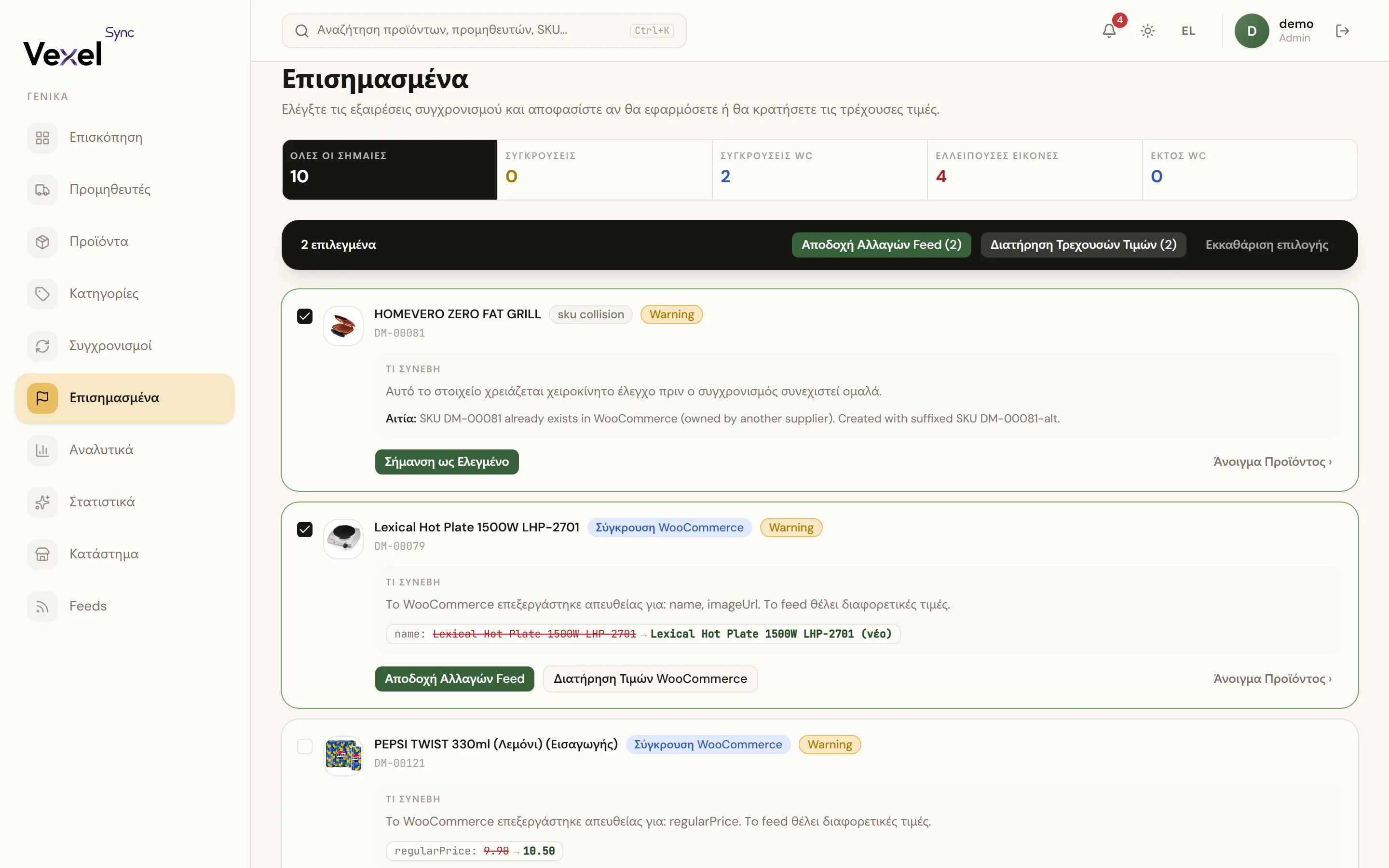
- Select multiple items with the checkboxes (or a whole flag type).
- Click Accept Feed Changes (N) or Keep Current Values (N).
- Confirm in the dialog.
For images there's Retry all images: re-downloads every image from the supplier and uploads it to WordPress.
Tip: if you keep getting Conflict flags on the same field, either unlock it (if you want the feed to update it) or keep it protected and accept that the feed will be ignored for it.
On mobile too