

Getting Started
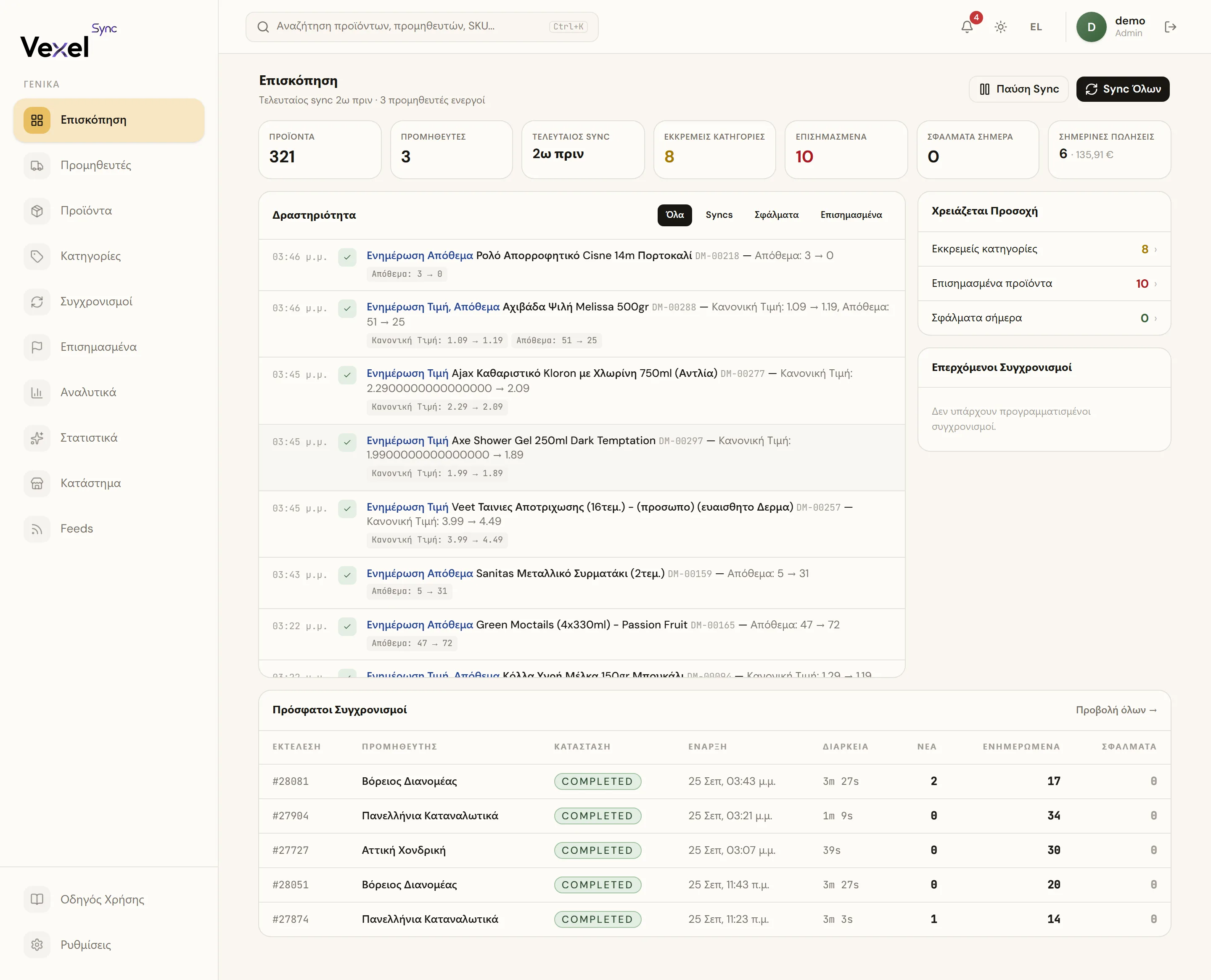
!The dashboard right after login, with the main KPIs and activity
Logging in
- Open the app URL in your browser.
- Enter your Username or Email and Password.
- Click Sign In.
Forgot your password? Click Forgot your password?, enter your email, and click Send reset link. New passwords must be at least 8 characters.
The Overview page
After login you land on the Overview, the big picture of your store:
| Item | What it shows |
|---|---|
| Products / Suppliers | Catalog totals |
| Last Sync | When the most recent sync ran |
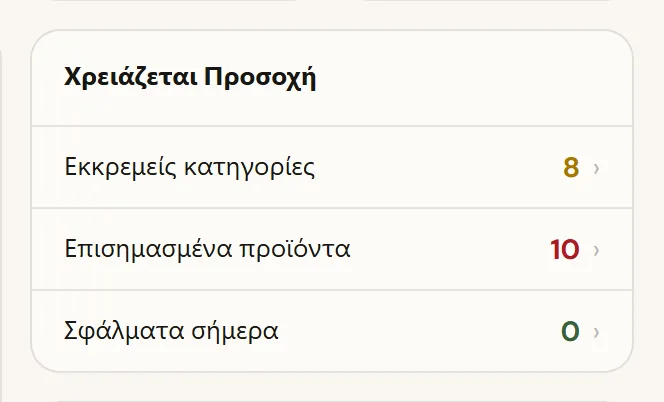
| Pending Categories | Feed categories waiting for mapping |
| Flagged | Products waiting for your decision |
| Errors Today | Today's sync errors |
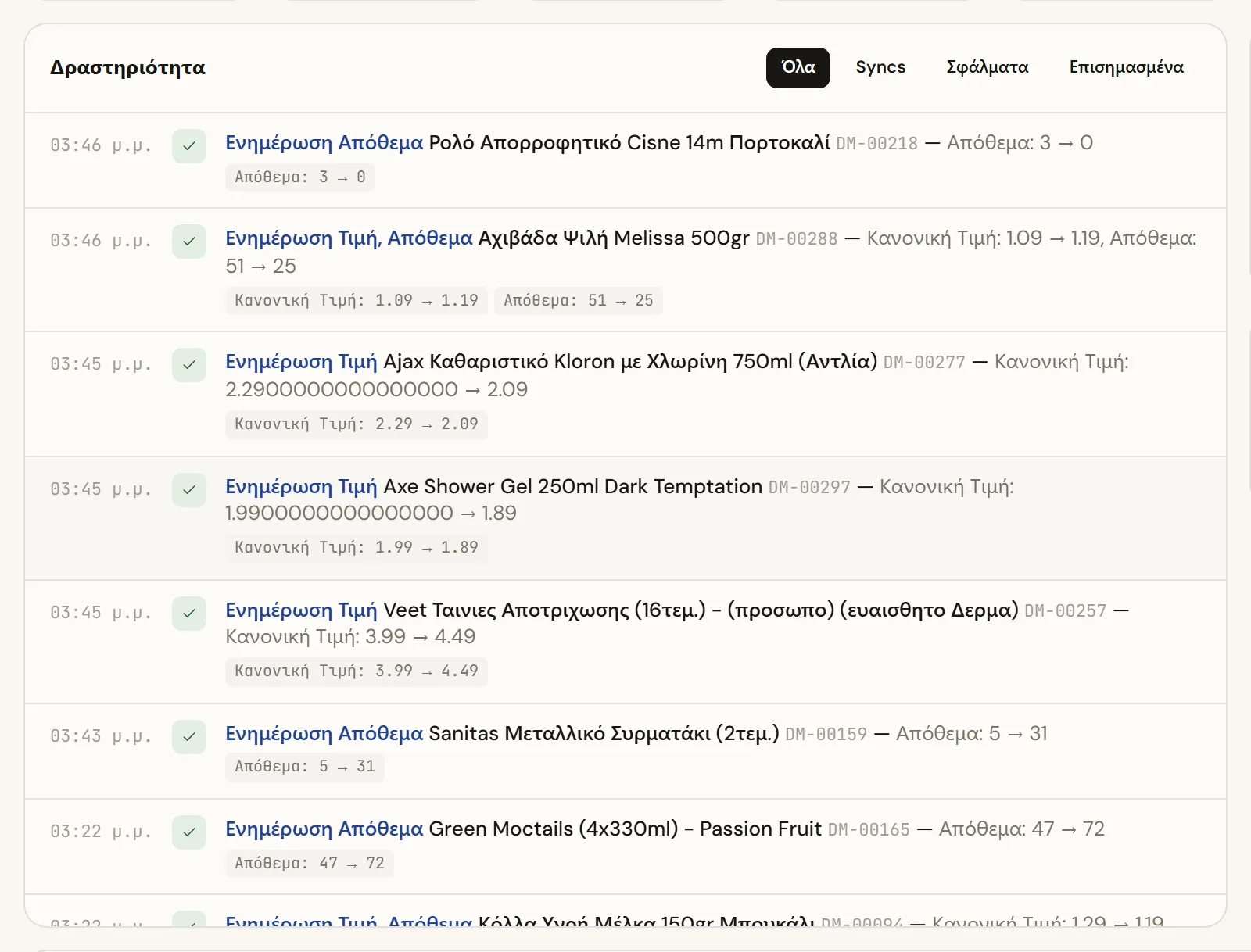
Below that you'll find four more sections: Activity (recent actions), Needs Attention (open items with links), Upcoming Syncs, and Recent Sync Runs.
Useful buttons
- Sync All: starts a sync for every active supplier.
- Pause Syncs / Resume Syncs: freezes all syncs (scheduled and manual). Syncs already running finish normally.
Heads up: Sync All and manually starting a sync need the Pro or Business plan. On Starter, syncing only happens on the schedule you set per supplier.
Navigation
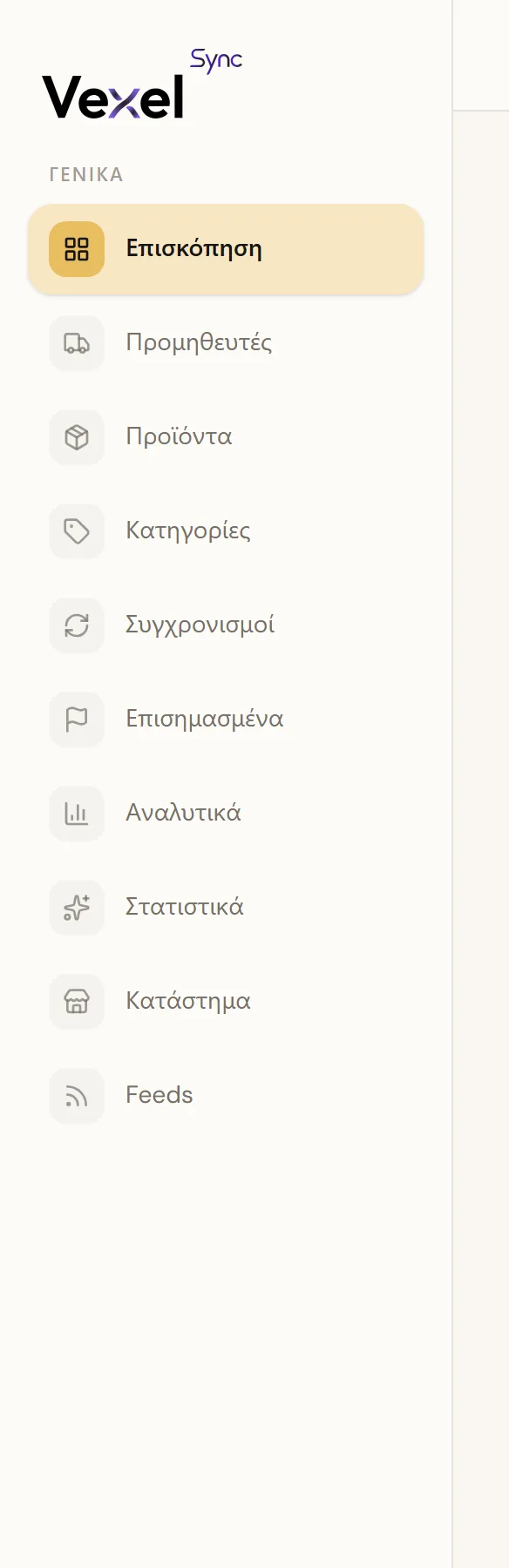
The left menu contains: Overview, Suppliers, Products, Categories, Sync Runs, Flagged, Analytics, Insights, Store, and Feeds, plus User Guide and Settings at the bottom.
In the top bar:
- Search: find products by name, SKU, or supplier from anywhere.
- Notifications (bell): new brands awaiting approval, overdue feed files, the plan's product limit, a supplier switch on a product, payment failures, and the nightly integrity check findings.
- Theme: Light / Dark / System.
- Language: Ελληνικά / English.
- Sign out: the exit icon next to your profile.
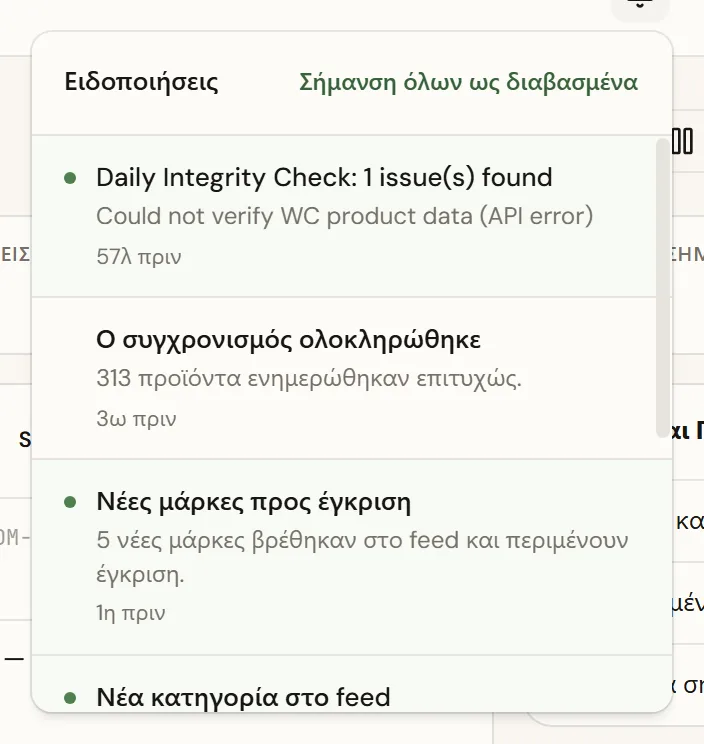
Tip: right now only the Dashboard channel (the bell) delivers real notifications. See Settings for details.
While a sync is running, a live progress tray appears at the bottom of the screen. You can keep working on any other page, no need to wait around.
Your first step
If you just created your account, the most important next step is connecting your store. See Connect your WooCommerce store.