
Settings
Notifications
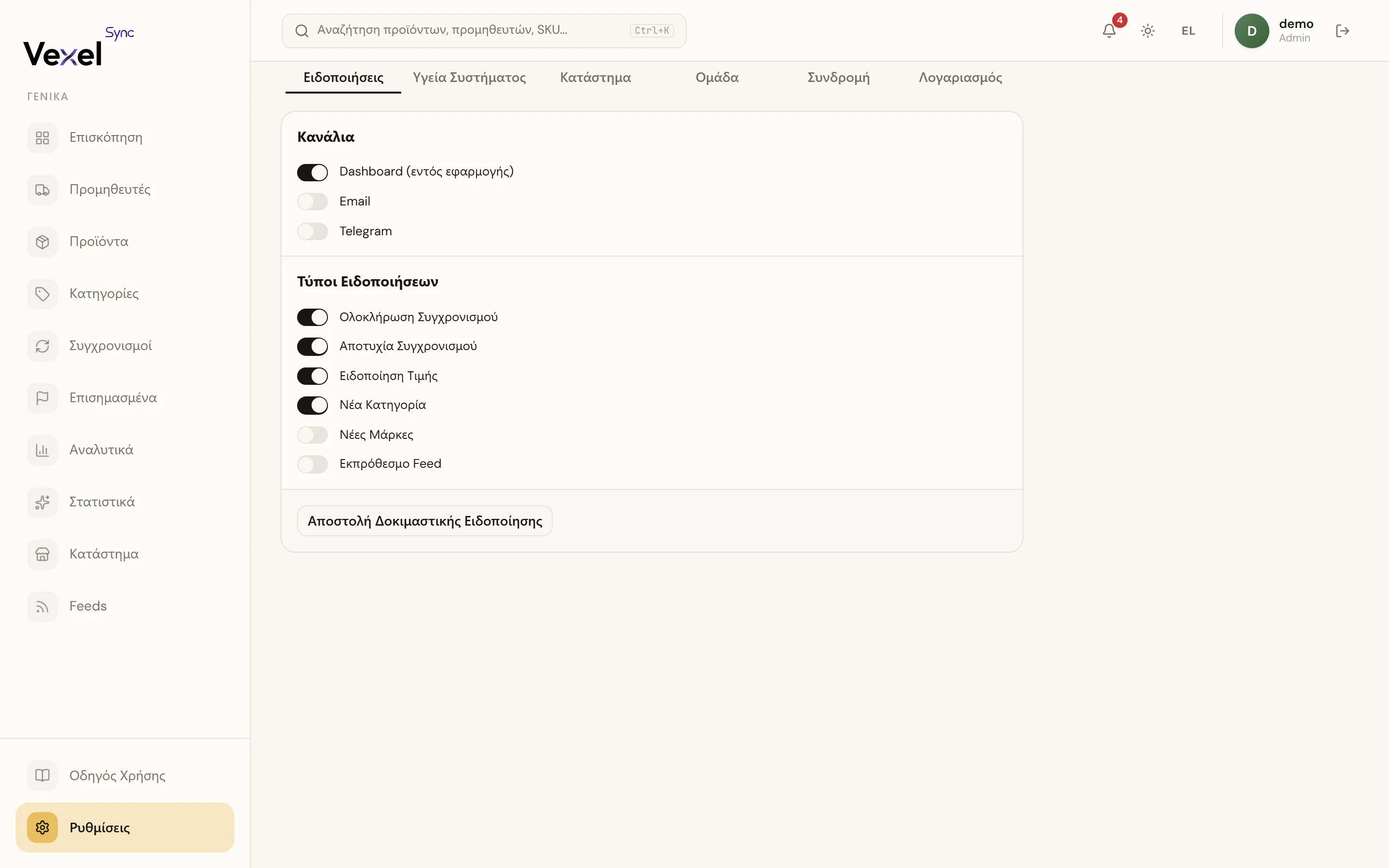
Choose where and what you get notified about.
Channels:
- Dashboard (in-app): the bell in the top bar. This is currently the only channel that delivers real notifications.
- Email: fill in an email address.
- Telegram: fill in your Telegram Chat ID.
Heads up: the Email and Telegram toggles exist in settings, but right now they don't send real notifications yet. Send Test Notification can deliver a test message to the channels you've enabled, but real account events currently only reach the Dashboard. If you rely on notifications, check the bell or the Overview page regularly.
Notification Types:
The notification types apply to the Email and Telegram channels, which aren't active yet. For the status of your syncs, see the Sync Runs page and the Overview.
Click Send Test Notification to test your channels. Changes save automatically ("Saved").
System Health
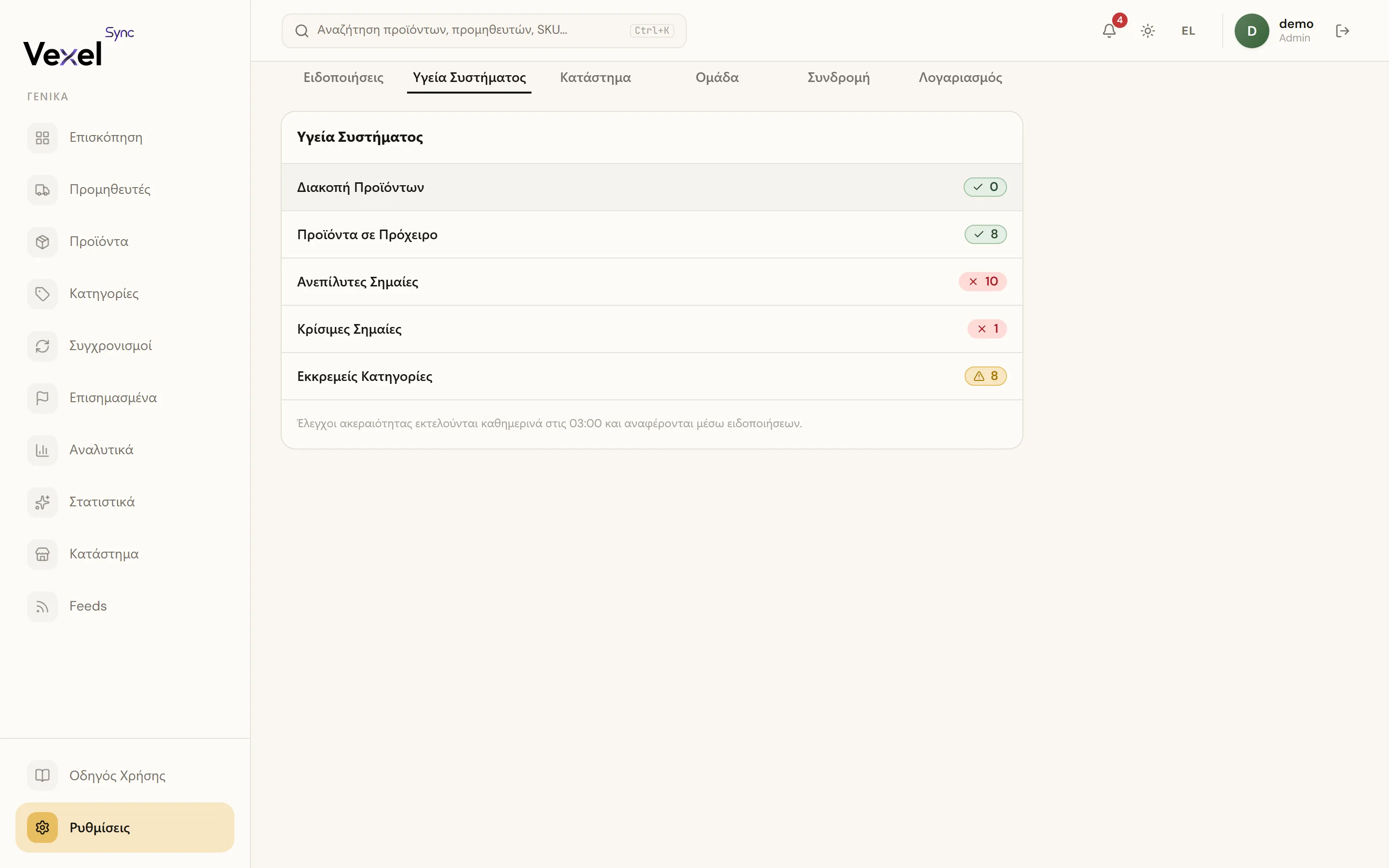
A summary of open items: Discontinued Products, Draft Products, Unresolved Flags, Critical Flags, Pending Categories. Each row links to the relevant page.
Integrity checks run automatically every day at 03:00 and any findings show up in the notifications bell.
Account
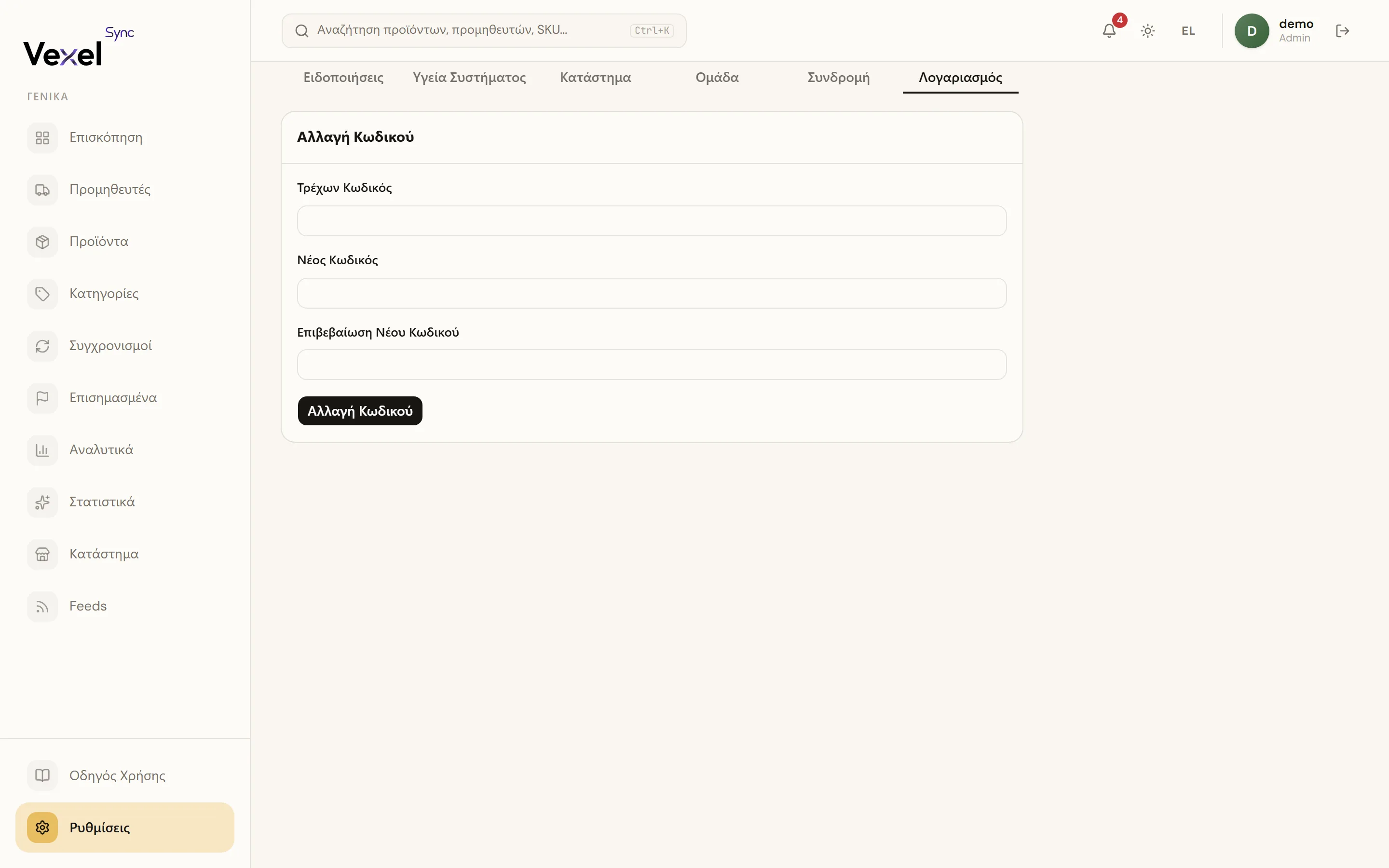
Change Password: enter your Current Password, a New Password (at least 8 characters), and the New Password Confirmation, then click Change Password.
Store
Your WooCommerce store connection lives here. See the full walkthrough in Connect your WooCommerce store.
Team
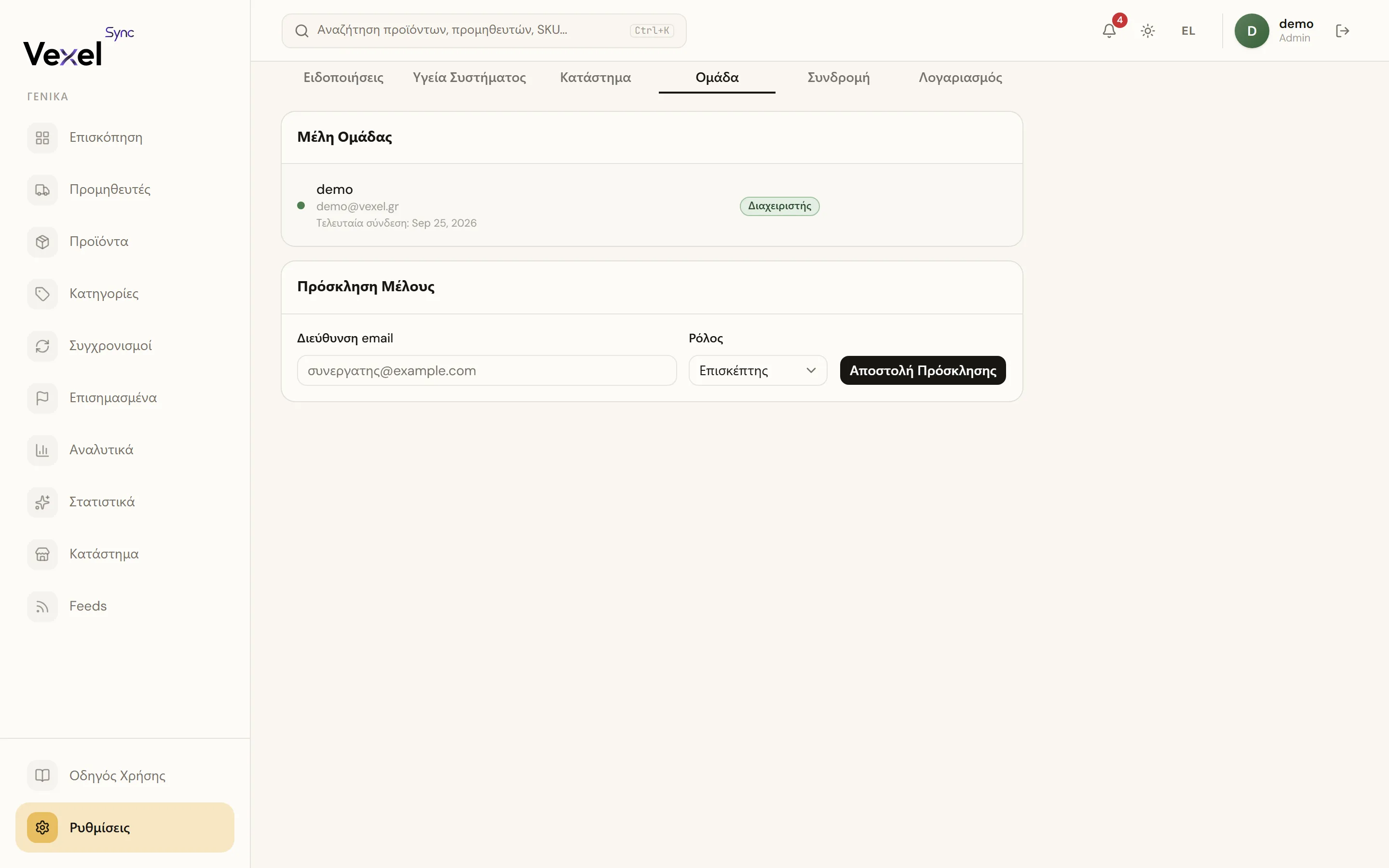
Invite collaborators and manage roles here. See Team: Inviting members.
Billing
Manage your plan, payment method, and invoices. See Managing billing.