

Categories
Mapping and merging categories, and approving brands, need the Pro or Business plan. On Starter, new products sync without a category or brand. See Plans & Pricing.
Each supplier sends its own categories (up to 3 layers: Top / Middle / Leaf Level). You map them to your WooCommerce category tree once per category, and it applies to all of its products.
Tabs
| Tab | Contents |
|---|---|
| Pending | Feed categories waiting for a decision |
| Mapped | Completed mappings |
| Dismissed | Categories you chose to ignore |
| WC Tree | The full WooCommerce category tree |
| Brands | New brand values from feeds awaiting approval |
Mapping a pending category
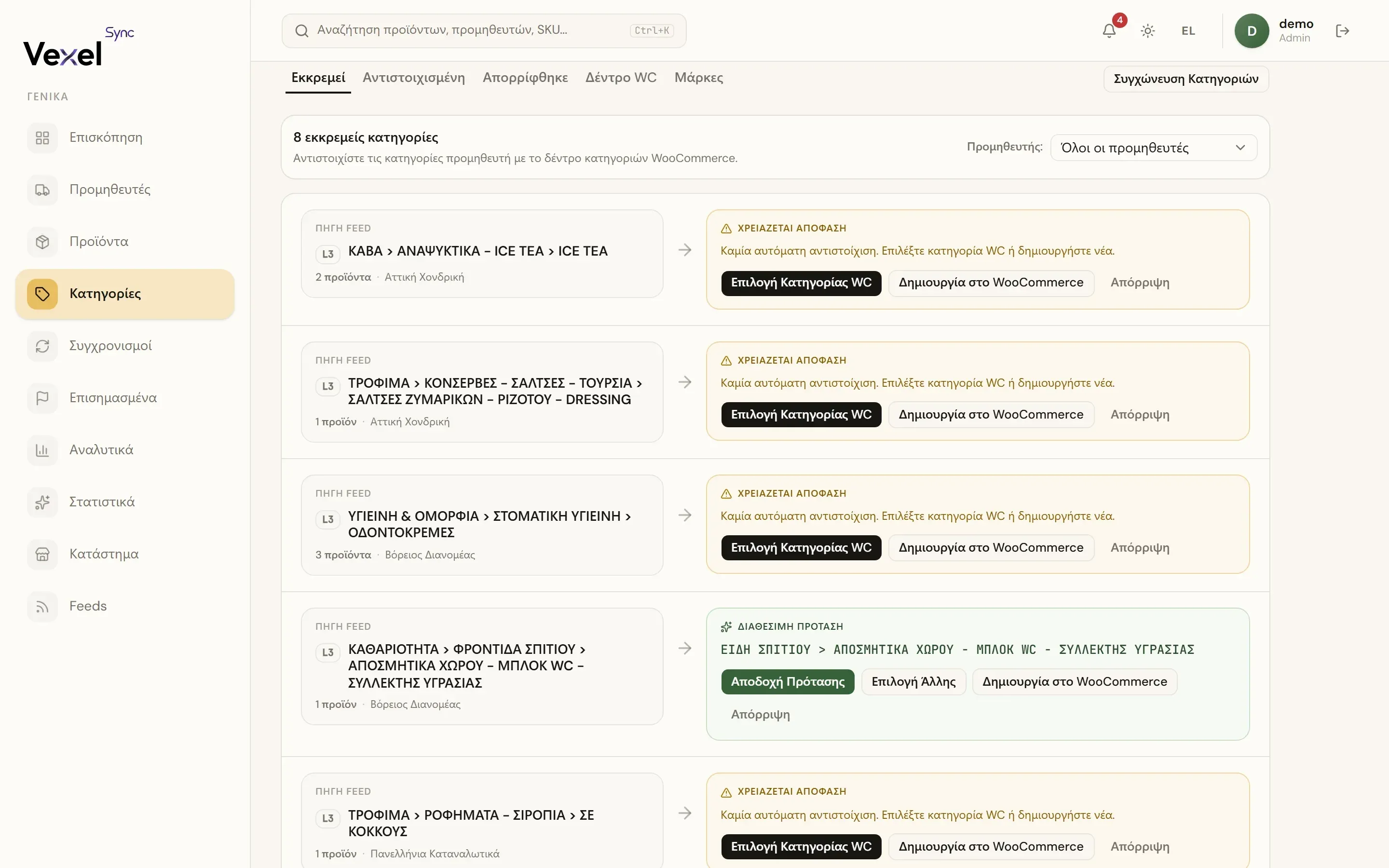
Each pending category has a status:
- Match found in WooCommerce: an exact match exists; click Use this match.
- Suggestion ready: the system proposes a category; click Accept Suggestion or Choose Different.
- Needs your decision: no automatic match, pick one yourself:
- Choose WC Category → search and click Map to Selected, or
- Create in WooCommerce: creates the path as a new category in your store, or
- Dismiss: the category is ignored (recoverable from the Dismissed tab via Undo).
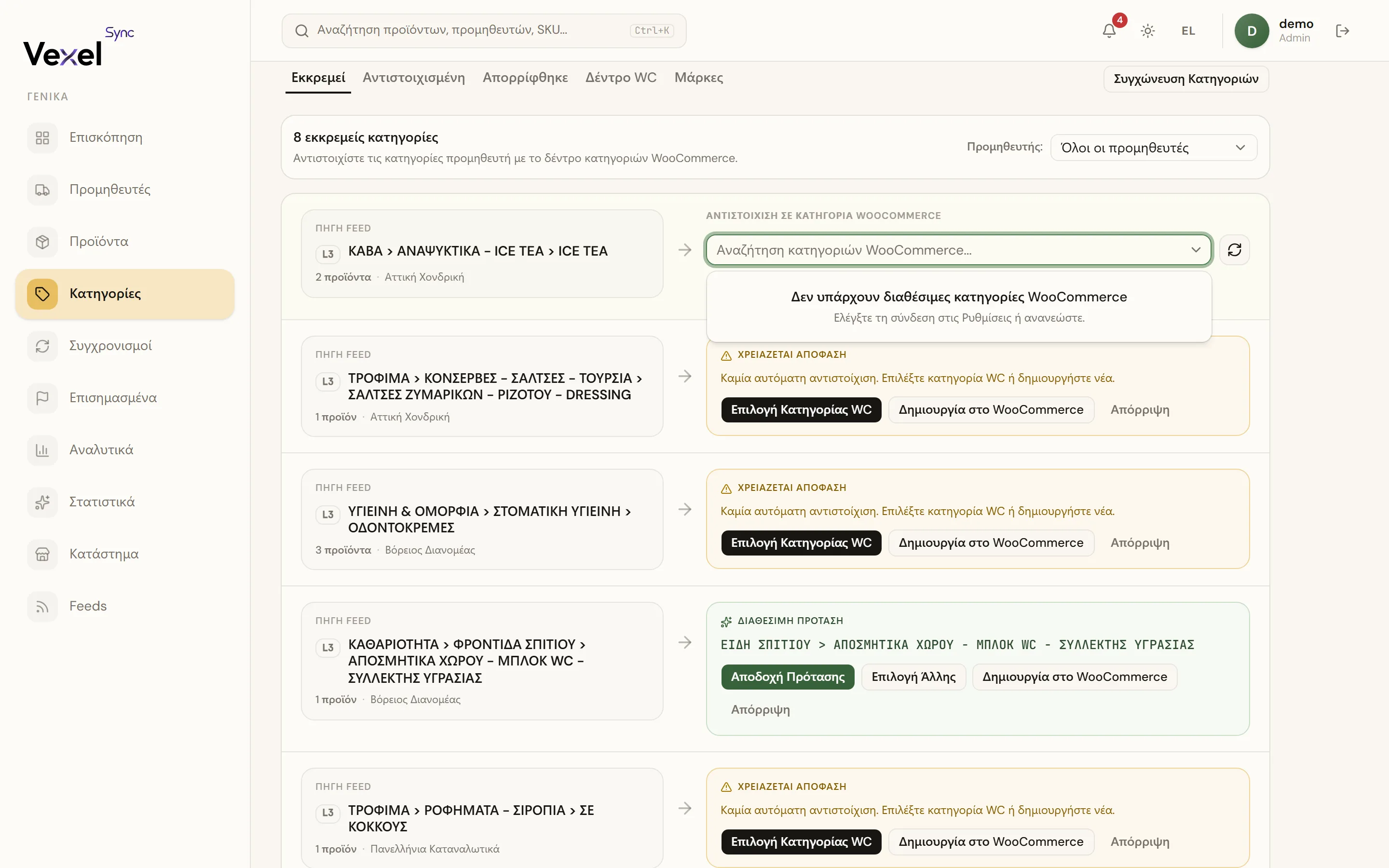
You can filter by supplier. Pending categories also appear on each supplier's sync page.
Fixing a mapping
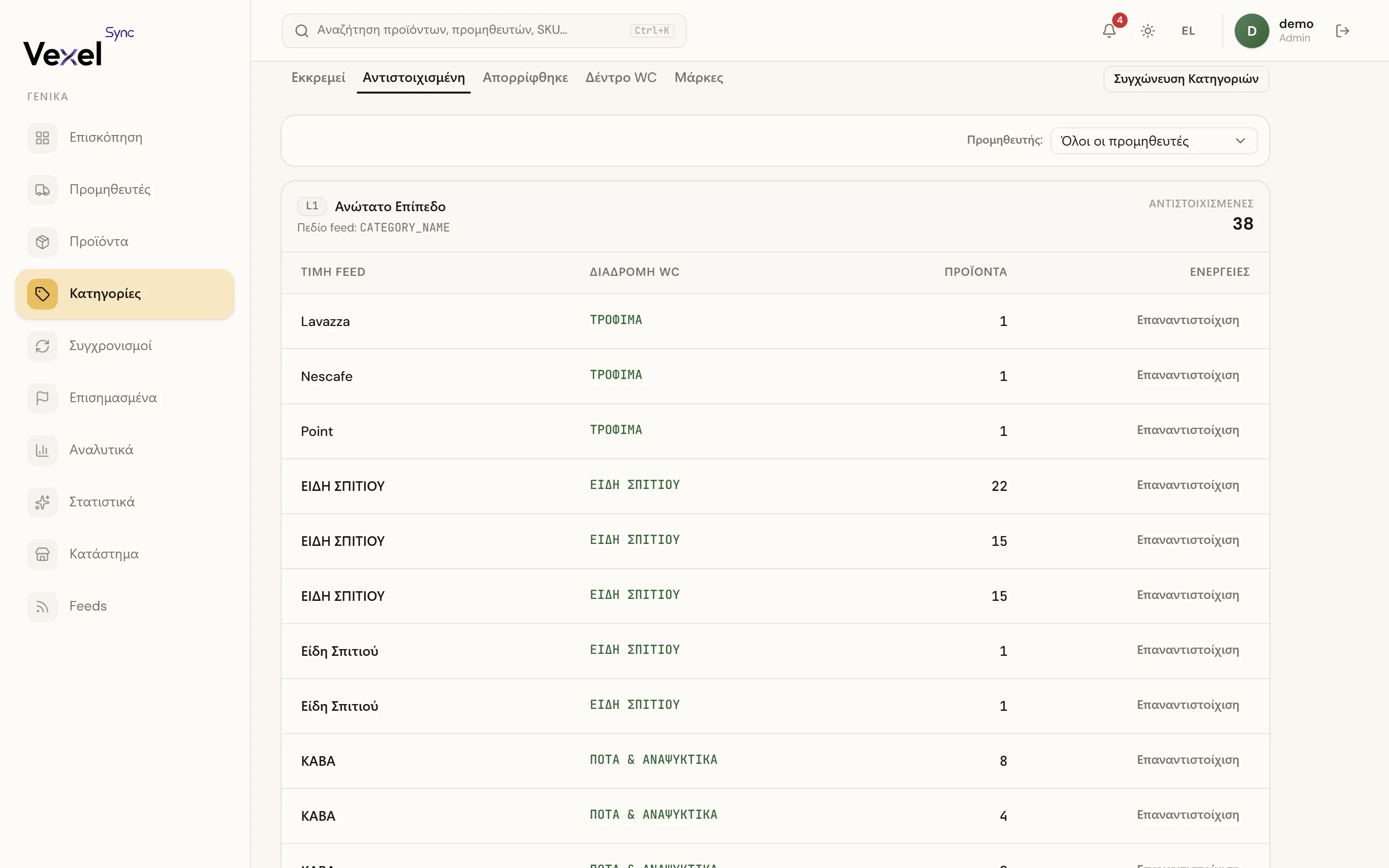
In the Mapped tab, click Remap on any row, pick a new WC category, and click Save Remap.
WC Tree
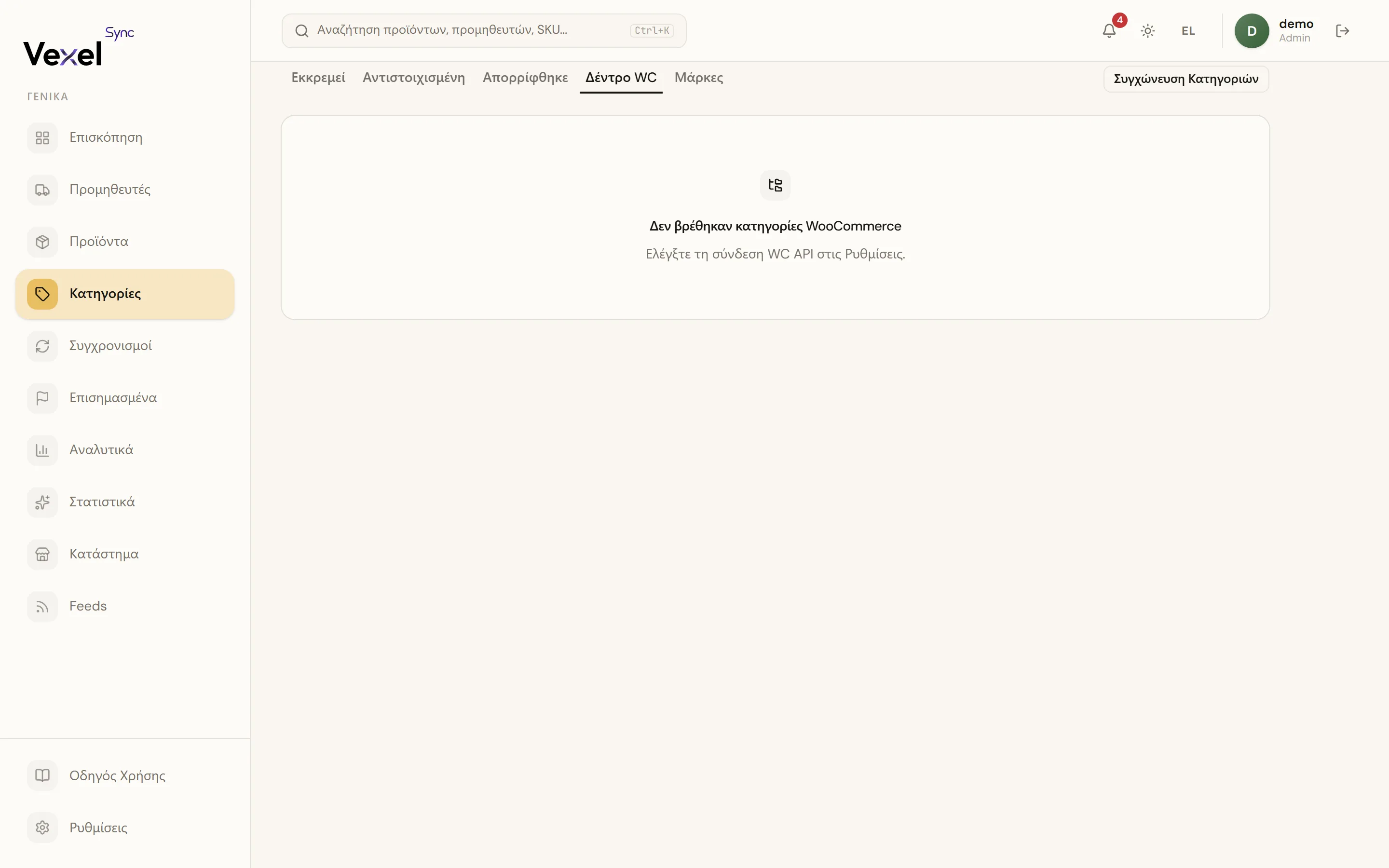
Shows all WooCommerce categories with product counts and Empty Leaves (categories with no products). Refresh re-reads the tree from your store, useful if you added categories directly in WooCommerce.
Merge Categories
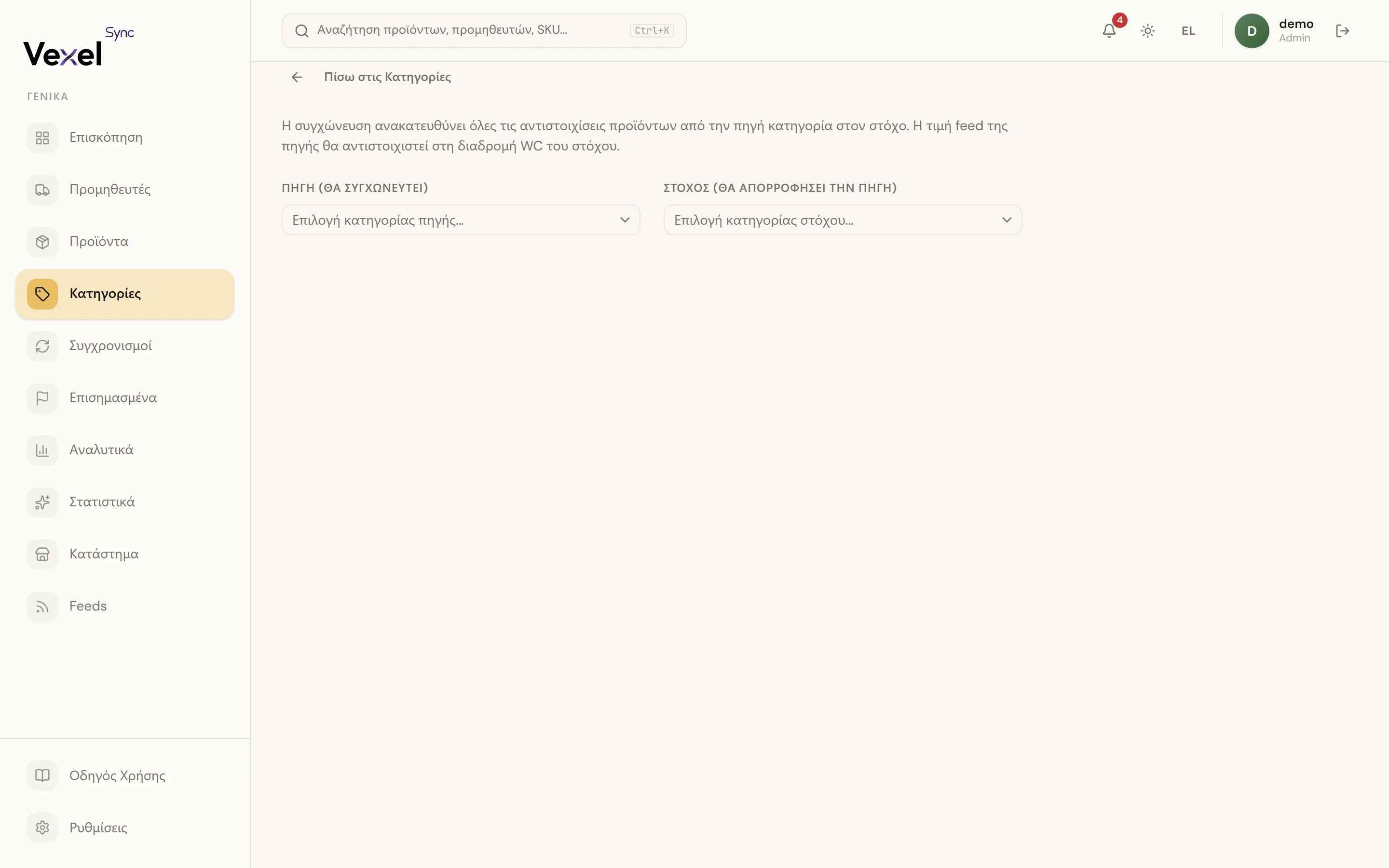
When two feed categories should end up in the same WC category:
- Categories → Merge Categories.
- Pick the Source (will be merged away) and the Target (will absorb source).
- Check the Merge Preview: how many products will be remapped.
- Tick the confirmation checkbox and click Merge Categories.
Heads up: merging cannot be easily undone. Review the preview before confirming.
Brands tab
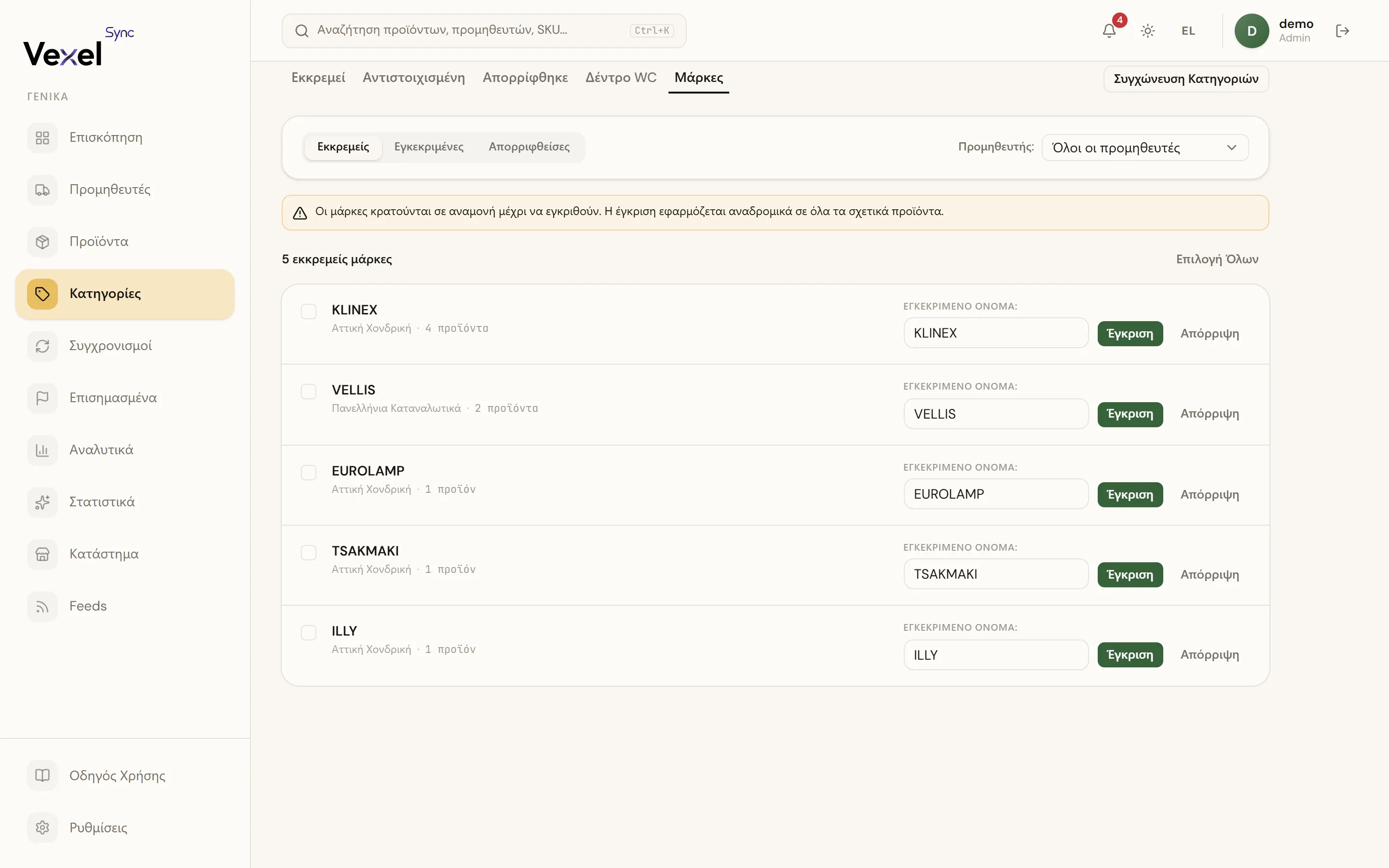
New brand values found in supplier feeds are held in the Brands tab until you review them. Products sync without a brand until the value is approved or dismissed.
Reviewing pending brands
Each pending brand shows the raw feed value, the supplier it came from, and how many products carry it. To review:
- Edit the approved name inline (pre-filled with the feed value) then click Approve; the normalized name is applied retroactively to all matching products on the next sync run.
- Click Approve without editing to accept the feed value as-is.
- Click Dismiss to permanently ignore the value (products will sync with no brand).
Use Select All + Approve Selected to bulk-approve multiple brands at once.
Approved and dismissed brands
Switch to the Approved or Dismissed sub-filter to review resolved brands:
- Approved: shows the original feed value and the approved name. Click Dismiss to revoke (products' brand is cleared on the next sync run).
- Dismissed: click Restore to move a brand back to pending, or Approve to approve it directly.