

Products
Product list
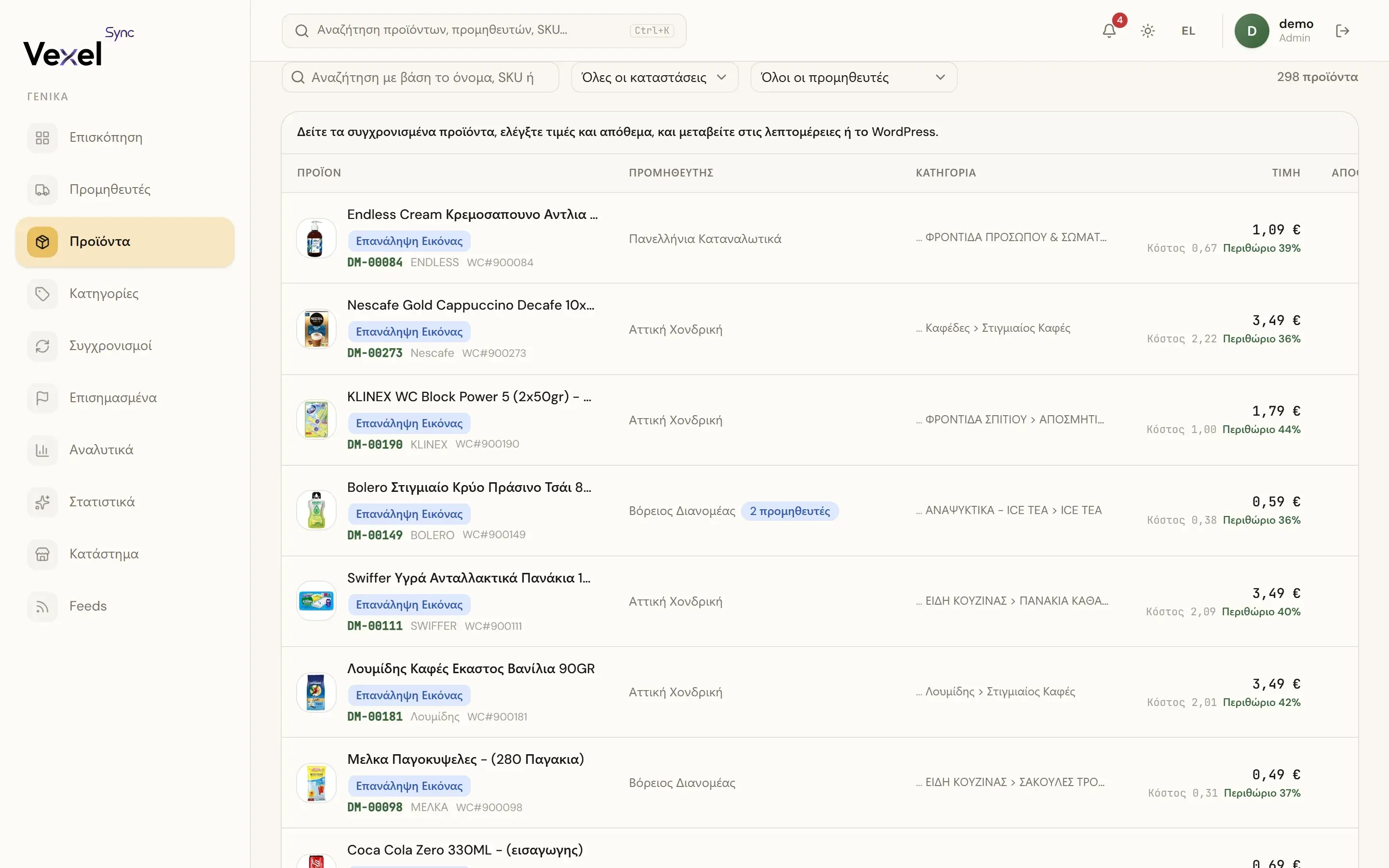
The Products page shows every synced product with price (plus cost/margin), stock, status, and when it last appeared in the feed.
- Search by name, SKU, or brand.
- Filters by status (Active / Draft / Discontinued) and supplier.
- WordPress: opens the product in your store.
- Retry Image: retries fetching the image from the supplier, without touching anything else on the product. Useful when the first attempt failed (e.g. a temporary network issue).
- "Woo edit" badge: someone edited this product directly in WooCommerce.
Product page
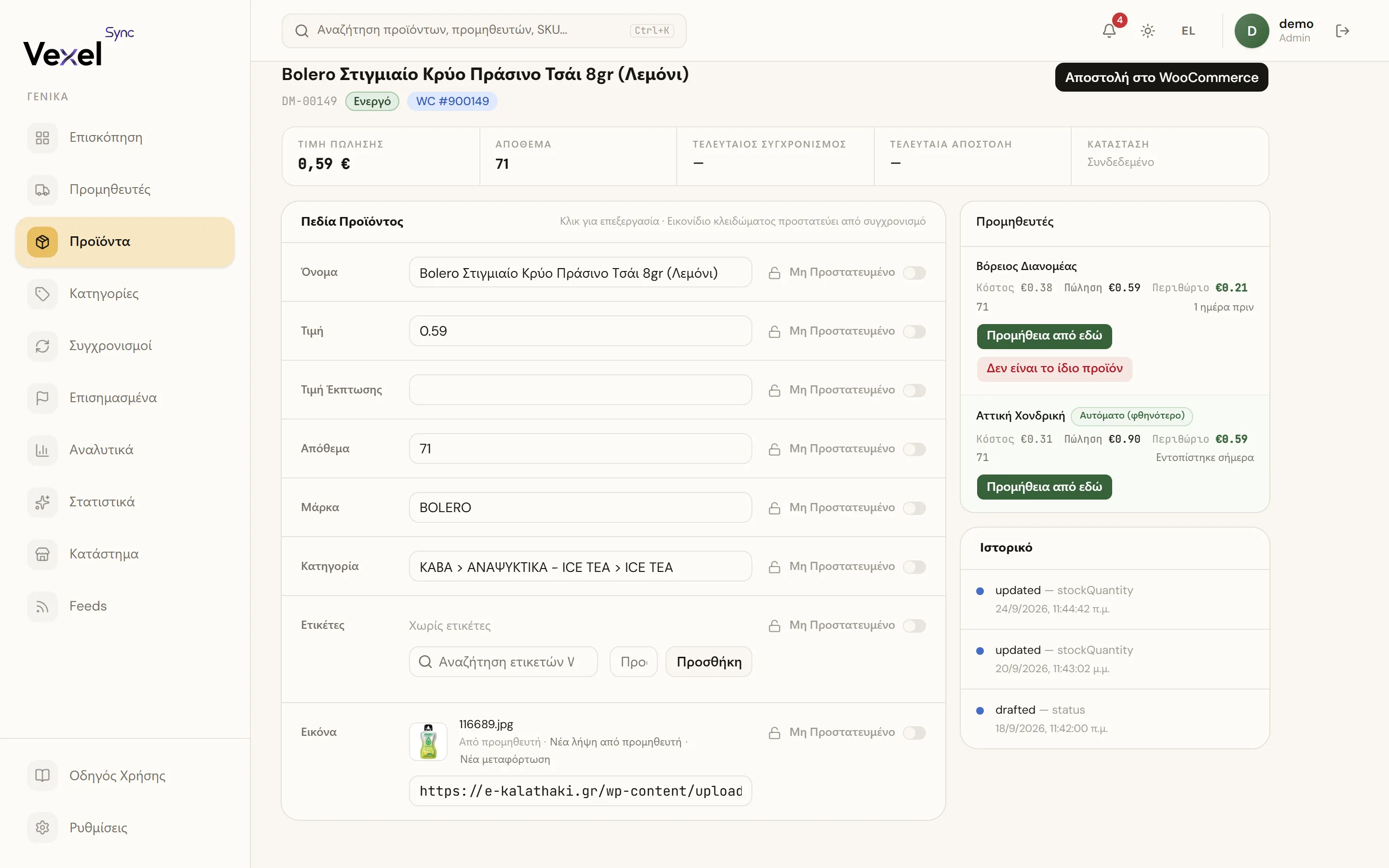
Click a product to edit it:
- In Product Fields, click any field and change its value.
- Click Save Changes (the bar shows how many fields you modified; Reset discards them).
- Click Push to WooCommerce to send the changes to the store, or Create in WooCommerce if the product doesn't exist there yet.
The top strip shows: Sell Price, Stock, Last Synced, Last Push, and the WooCommerce link status.
Protecting fields
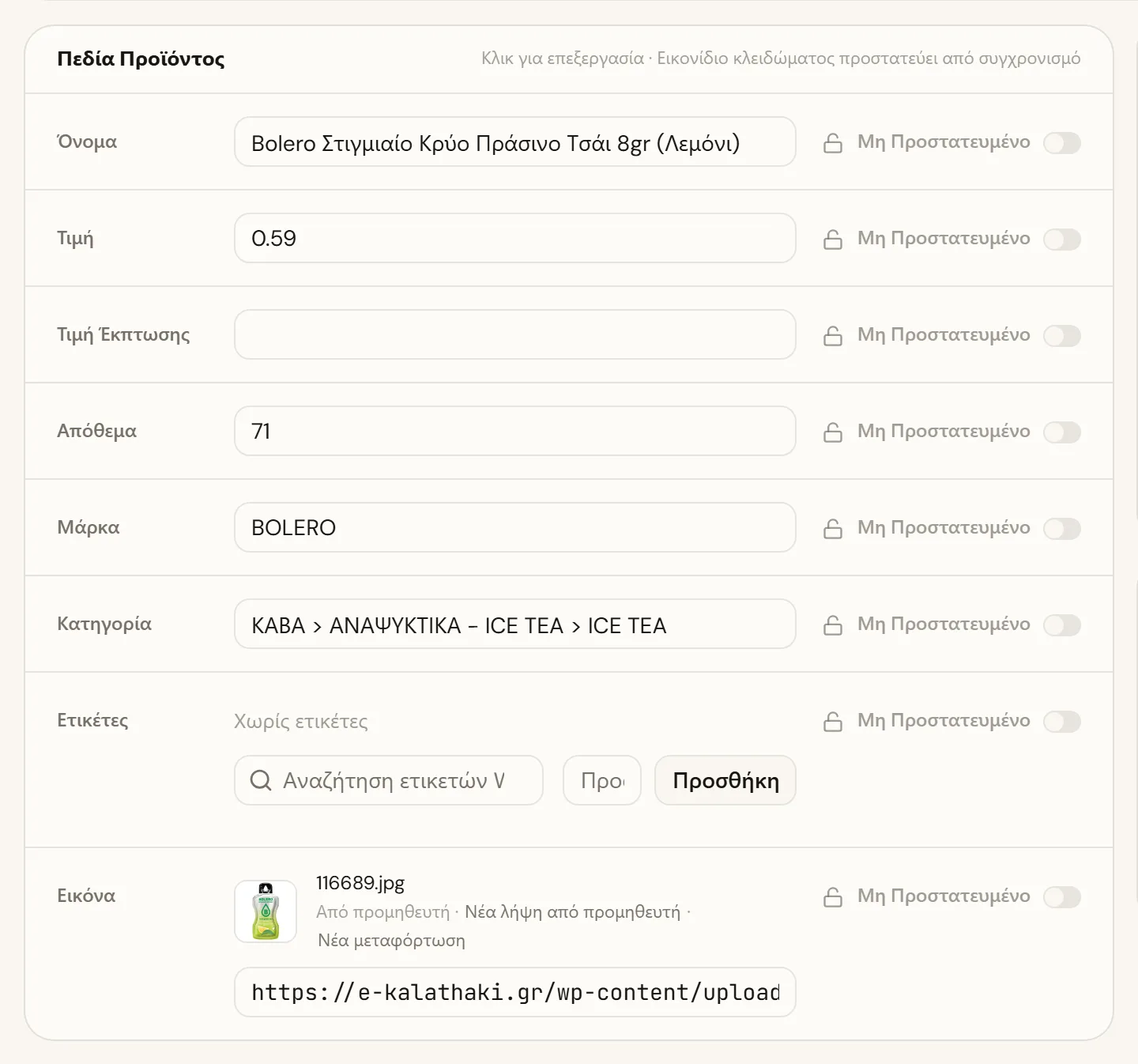
Every field has a lock icon:
- Protected: the sync will never overwrite it. Useful when you're keeping your own price, brand, category, or tags (the name, description, and image are never overwritten by a sync anyway).
- Unprotected: the supplier feed updates it normally.
If you edit a field without protecting it, the next supplier update may overwrite it. When a conflict happens, the product gets flagged and you decide. See Flagged Items.
Image
- Re-download from supplier: downloads the main and gallery images again straight from the supplier (bypassing caches) and replaces the ones that changed. Use it when the supplier swaps a photo but keeps the same URL.
- Upload new: upload your own image. Check Protect image URL after upload so the sync won't replace it.
Multiple suppliers for the same product

When a product's barcode matches an offer from more than one of your suppliers, a Suppliers panel appears on the product page listing every supplier that carries it, with cost, sell price, and margin for each.
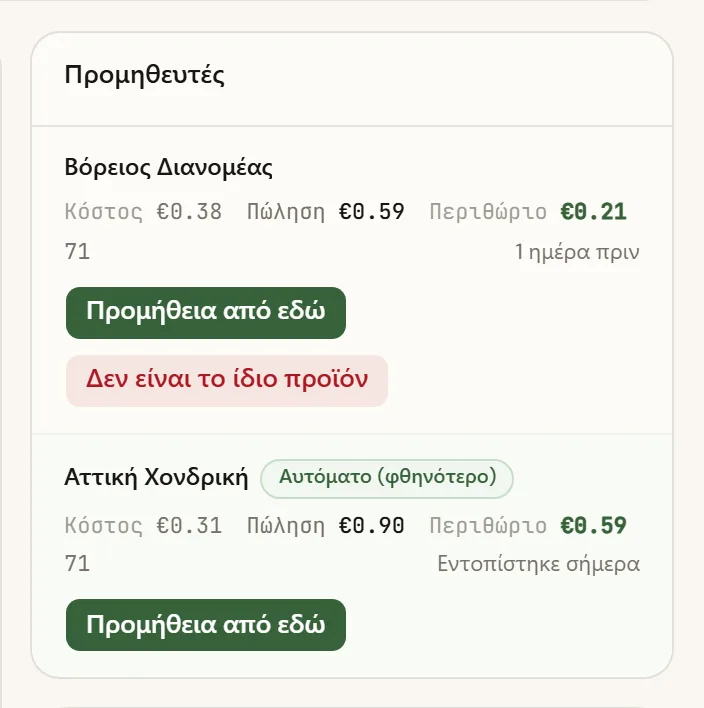
- By default the system sources automatically: the cheapest in-stock, recently-seen supplier wins.
- Source from here: pins a supplier as your preferred source (applies to every product sharing that barcode). A tag shows why the current source was picked (your pick, automatic/cheapest, or a fallback because your pinned supplier is out of stock).
- Use automatic: removes the pin and goes back to automatic selection.
- Not the same item: excludes a supplier from ever being auto-selected for this barcode, without deleting its data (use this when two suppliers' feeds share a barcode by mistake).
- Add back: reverses an exclusion.
Changes usually apply to your store right away; if a live push isn't possible at that moment, they apply on the next sync instead.
Pending decisions
If the product has a pending flag (e.g. a price conflict), decision buttons appear at the top of the page: Accept the feed value or Keep your current one.
History
At the bottom you'll find the product's change History, and Live Activity while a sync is running.
On mobile too
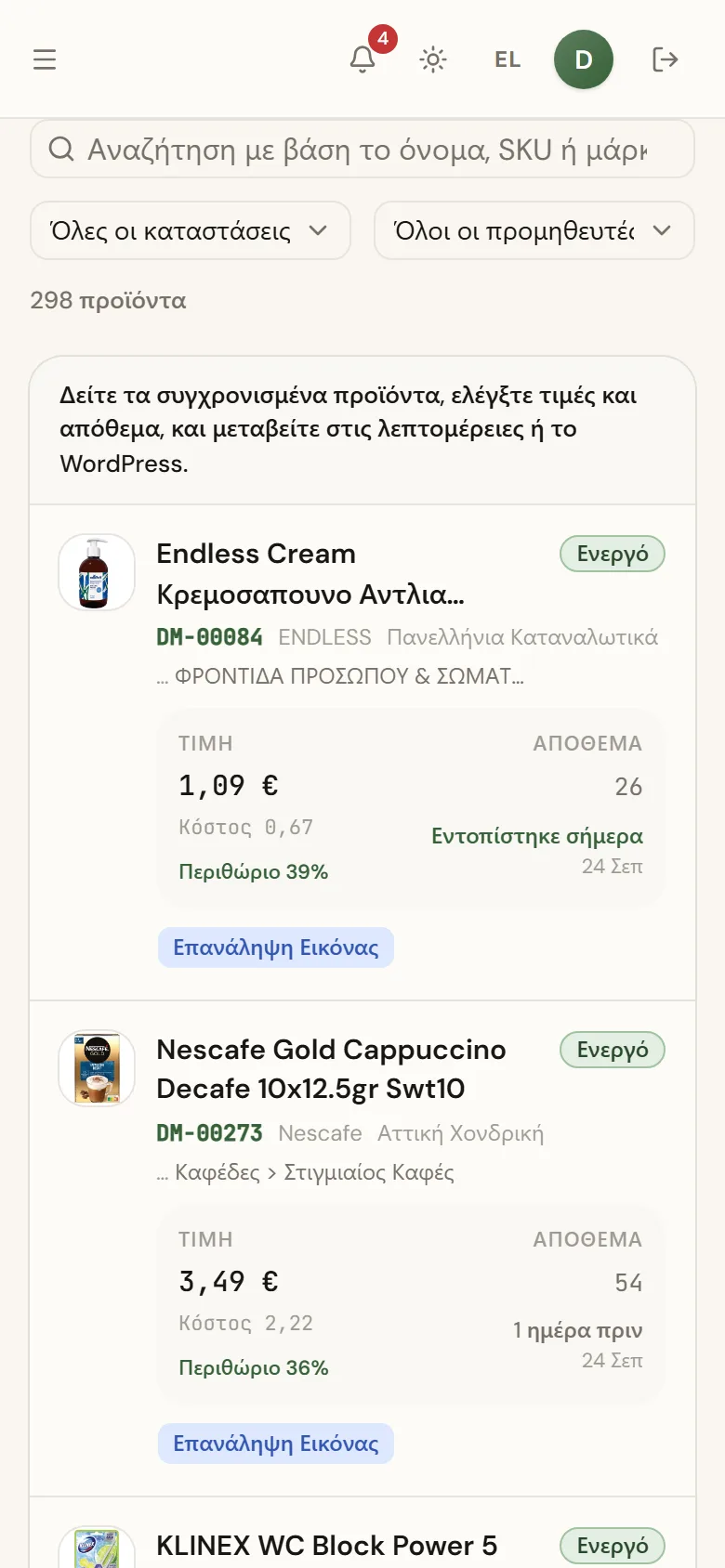
The app works from your phone too, handy for a quick price or stock check on the go.