

Account & Billing
Creating an account
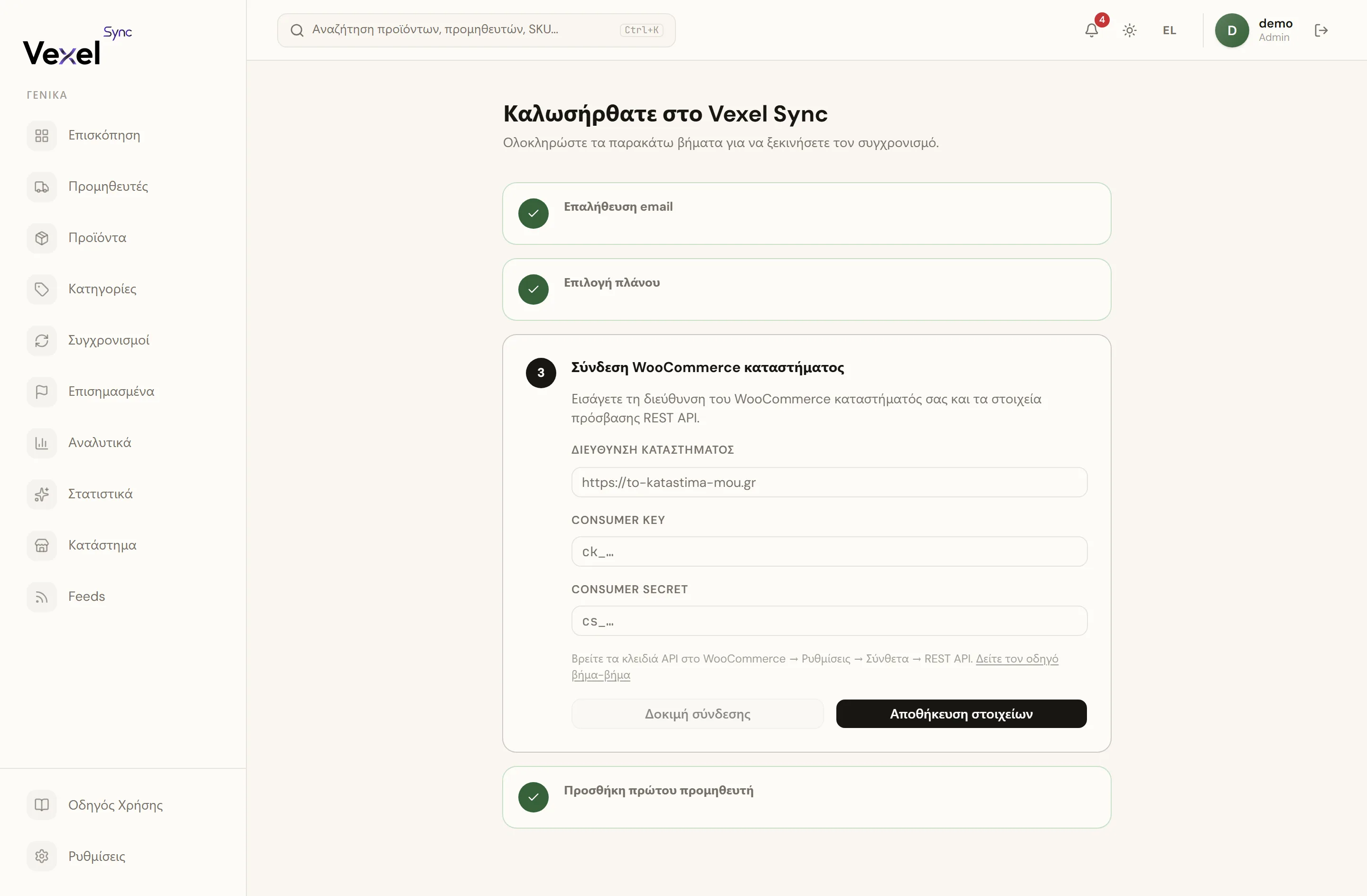
- Go to app.vexel.gr and, below the login form, click Create one.
- Enter your email, a password (at least 8 characters), and your company name.
- Click Create account. You're taken straight into the welcome steps.
Email verification
A verification email is sent to the address you provided. Click the link in the email to verify your account.
Email didn't arrive? Click Resend verification email on the welcome steps. Also check your spam folder.
Email verification is required before you can choose a plan and start syncing.
Choosing a plan
Once your email is verified, pick a plan and pay by card at checkout. Your subscription activates immediately and the first invoice is charged right away. There is no free trial.
If you're a Greek company, checkout also collects your company name and VAT id so your invoices are issued correctly.
Plans & Pricing
All prices are incl. VAT. The annual plan includes 2 months free (~17% discount) and setup is always free with annual billing. Monthly plans have a one-time €99 setup fee on the first subscription. For a limited time, setup is free for the first customers (the discount is applied automatically at checkout).
| Plan | Monthly | Annual | Suppliers | Products | Most frequent sync |
|---|---|---|---|---|---|
| Starter | €49/mo | €490/yr | up to 2 suppliers | up to 2,000 | every hour |
| Pro | €99/mo | €990/yr | up to 5 suppliers | up to 50,000 | every hour |
| Business | €199/mo | €1,990/yr | up to 15 suppliers | unlimited | every 15 minutes |
The "Most frequent sync" is the shortest interval your plan allows for a supplier's Sync Schedule (see Suppliers); you can always set a longer one.
You can switch plans or cancel your subscription at any time from the billing portal (see below).
What's included in each plan
Every plan includes: suppliers and field mapping, scheduled syncing, Flagged Items, notifications, WooCommerce connection.
Pro and Business only:
- Category Mapping and brand approval (Categories)
- Pricing Rules (Pricing)
- Manual sync triggering (the Start Sync / Sync All buttons, Starter syncs only on its schedule)
- Marketplace Feeds, including Creative Images (Feeds)
- Insights (Analytics & Insights)
- Profit/Margin on the Store page (the revenue overview stays available on every plan)
Managing billing
Go to Settings → Billing and click Manage Subscription. This opens the secure Stripe portal where you can:
- Update or change your card.
- Download invoices.
- Upgrade or downgrade your plan.
- Cancel your subscription.
Failed payment
If a payment fails, syncs pause automatically and your data stays intact. A warning banner appears in the app with a link to update your card. Once payment succeeds, syncs resume automatically.
Money-back guarantee
The subscription is covered by a 14-day money-back guarantee: if Vexel Sync isn't working out for you within the first 14 days, contact the Vexel team and we'll refund the subscription charge. This applies once per customer. The one-time setup fee is non-refundable once your store connection has been set up. Refunds are handled by the Vexel team on request; there's no self-serve refund button in the billing portal.
Closing your account
Admins can close the account from Settings → Billing → Danger Zone. Type your company name to confirm, then click Close Account. Your subscription is canceled right away and syncs stop. Your data is kept and reactivates if you sign up for a new subscription. If you just want billing to stop at the end of the current period, use the cancel-subscription option in the billing portal instead.
Connecting your WooCommerce store
After activating your subscription you need to connect your WooCommerce store. See the full walkthrough, including creating REST API keys and troubleshooting, in Connect your WooCommerce store.
Team: Inviting members
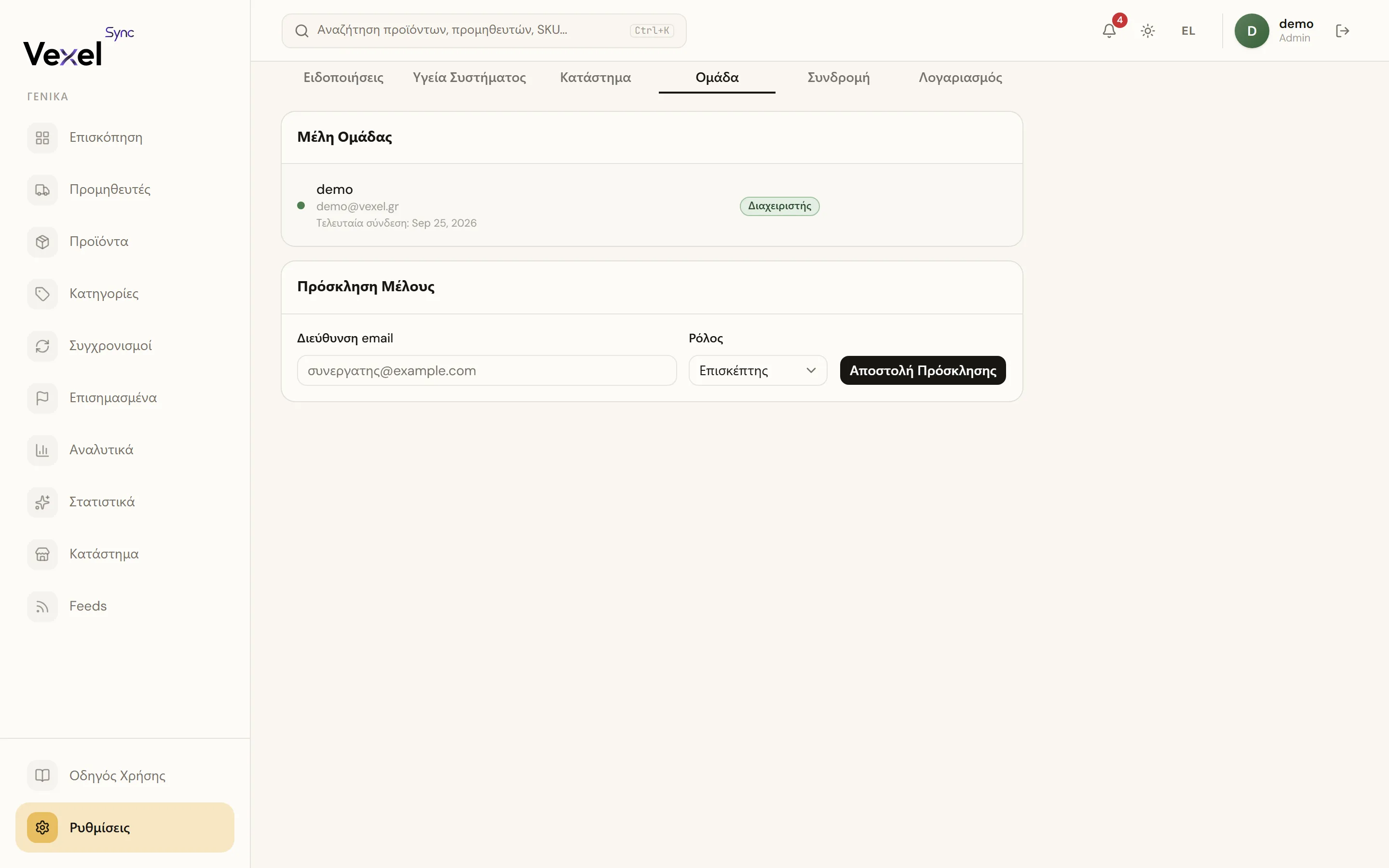
Go to Settings → Team.
Roles
| Role | Permissions |
|---|---|
| Admin | Full access: manage suppliers, sync, settings, billing, invite members |
| Viewer | Read-only: can view data, cannot make changes |
Inviting a new member
- On the Invite Member card, enter their email and choose a role (Admin or Viewer).
- Click Send Invitation; the user receives an email with a link valid for 7 days.
The invited person sets their own password and gains immediate access to your account.
You can change a member's role or remove them at any time. You cannot remove the last admin. An account has up to 10 total slots (members + pending invites), regardless of plan.
Suppliers, products & upgrading your plan
Each plan has a limit on the number of active suppliers and products:
- Starter: up to 2 suppliers, up to 2,000 products
- Pro: up to 5 suppliers, up to 50,000 products
- Business: up to 15 suppliers, unlimited products
If you try to add a supplier beyond your plan's limit, the app notifies you and guides you to upgrade. If a sync would push you past your product limit, the extra new products are skipped and you get a notification. Go to Settings → Billing → Manage Subscription to upgrade.
Need help? Book a call, email hello@vexel.gr, or call 231 777 3800.