

Ad images for Facebook and Instagram
Creative Images need the Pro or Business plan, and are only available for Facebook feeds. See Plans & Pricing.
What it does
Instead of sending Facebook the plain product photo, Vexel Sync can turn it into a ready-made ad image, generated automatically for every product:
- Your logo on top of the photo.
- Price (plus the original price struck through, when there's a genuine offer).
- Badges such as "Free shipping", "On sale", a discount percentage, "In stock now", "Until DD/MM", or "New".
- A layout that puts the product's gallery photos to work, not just the main one.
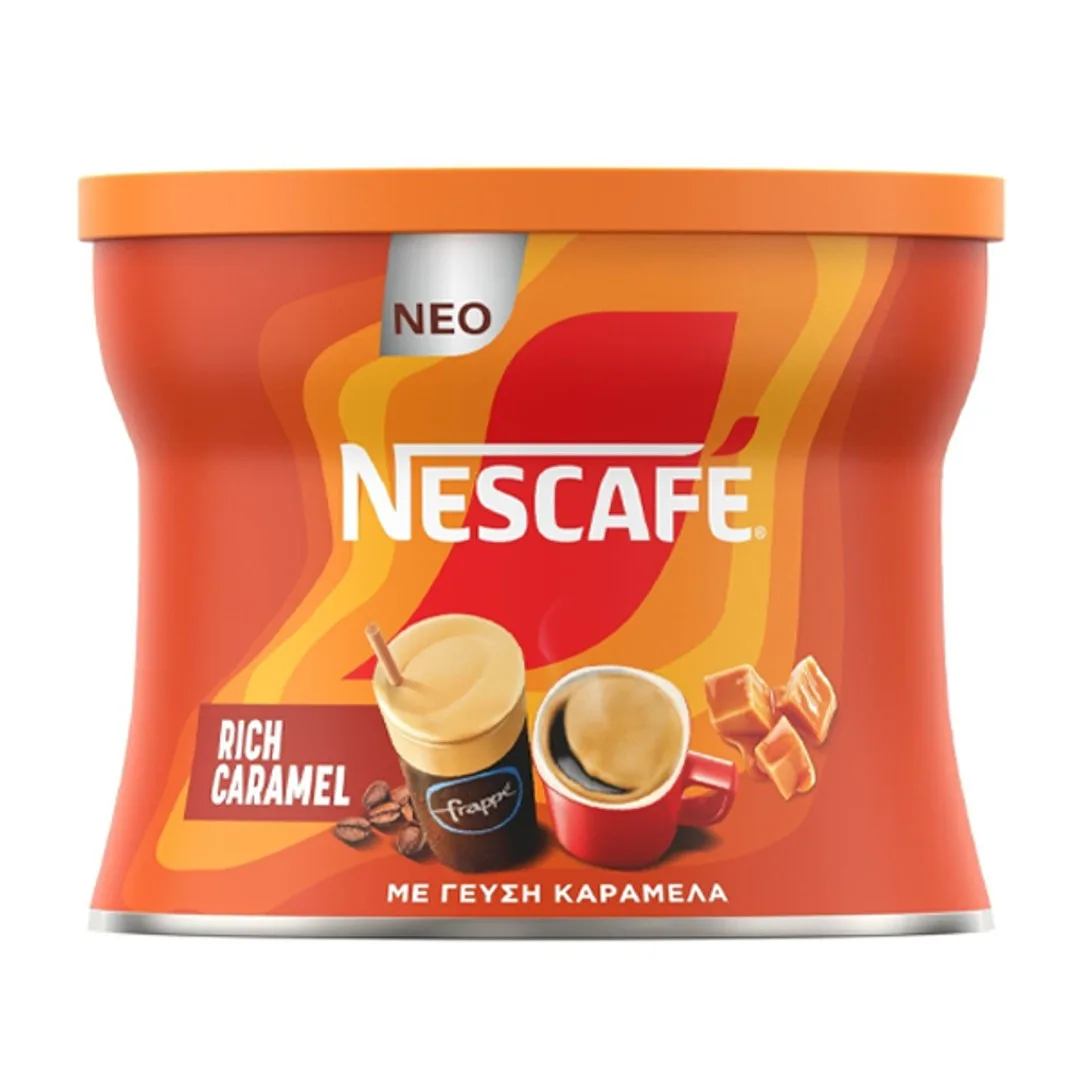
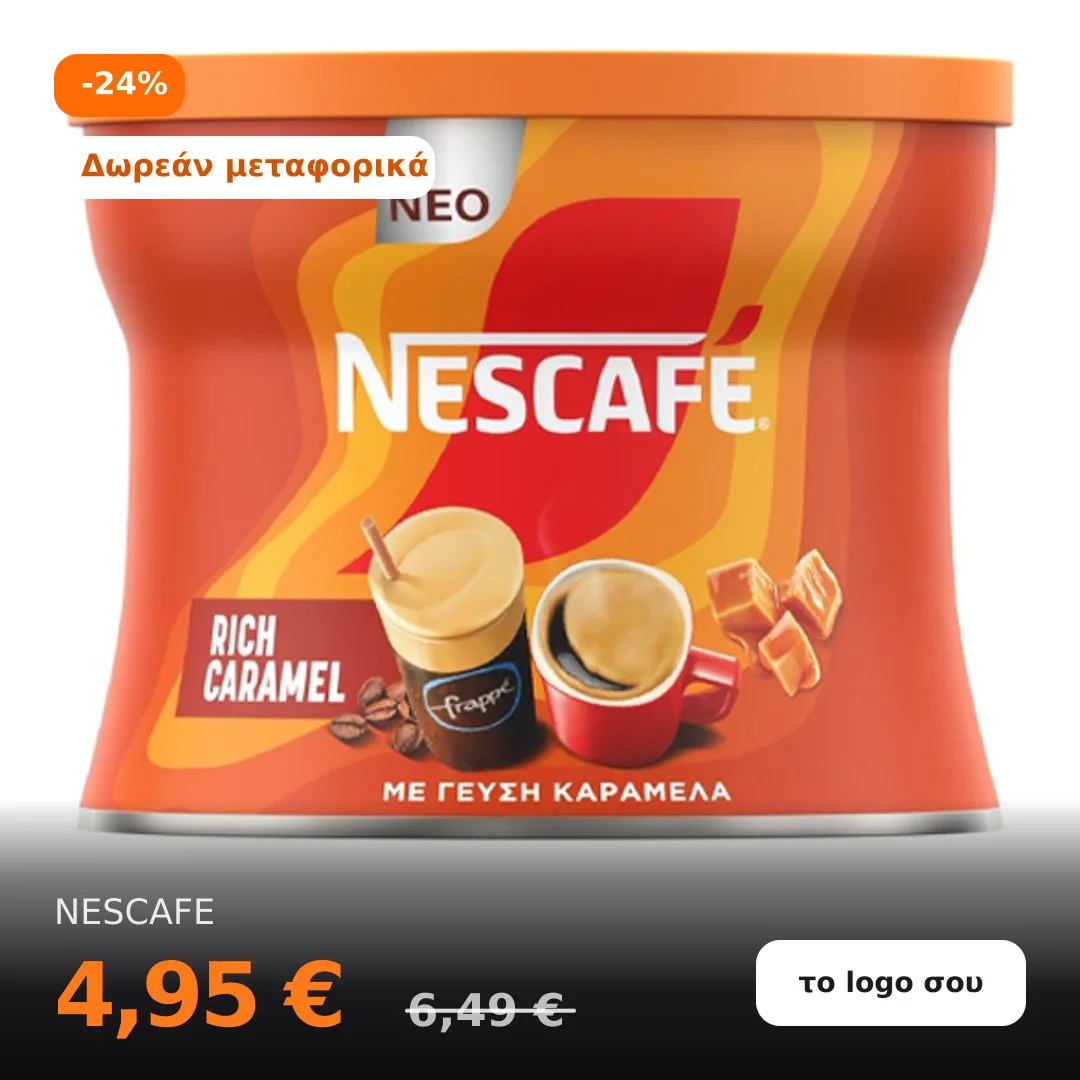
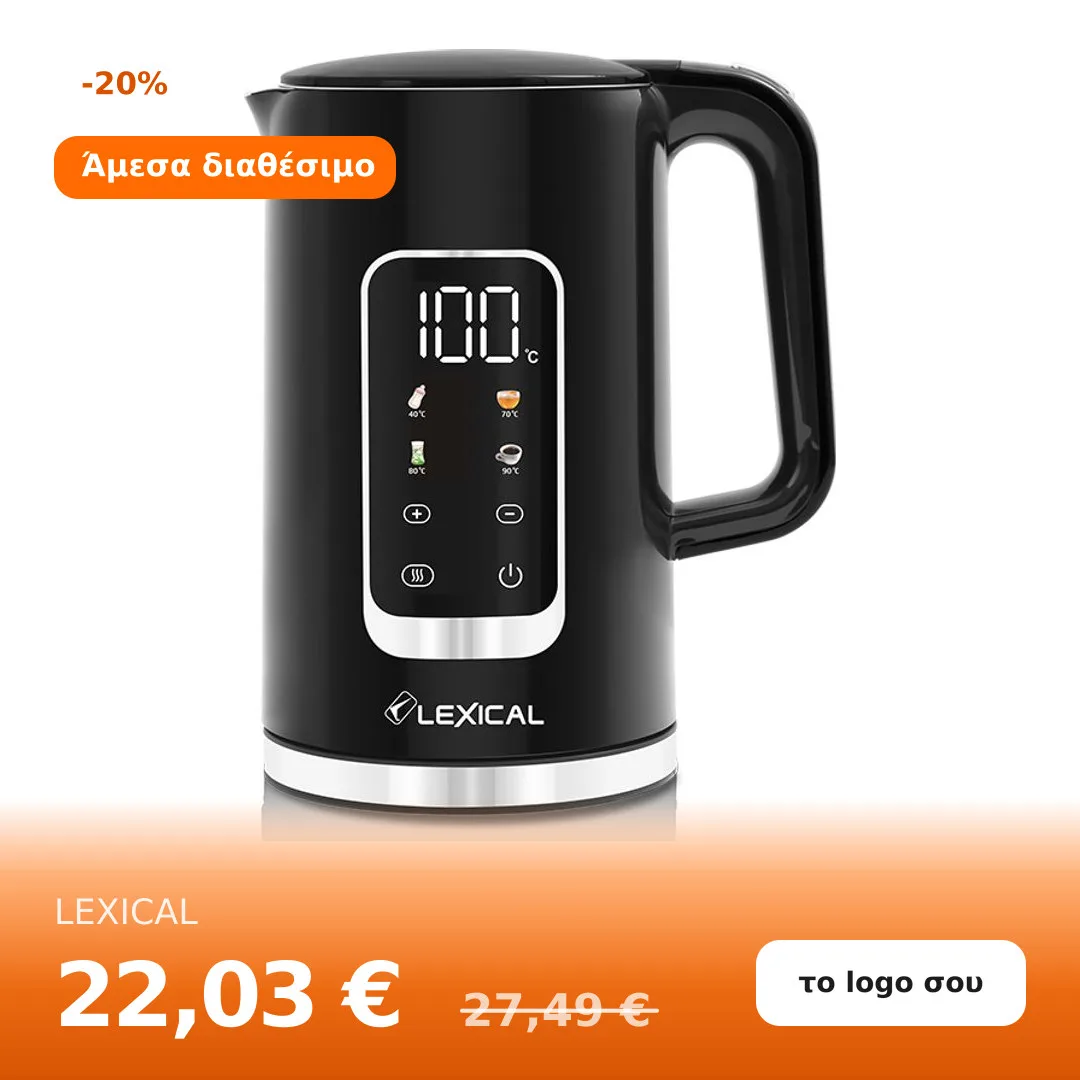
The logo in these examples reads "your logo" as a placeholder; the real image uses your own logo.
Every badge is checked against the product's real data each time an image is generated, and it's dropped the moment it's no longer true. For example, if a sale ends in WooCommerce, the "On sale" badge disappears automatically from the image on the next sync, it doesn't stay stuck on an offer that's over.
Layouts
Five layouts make use of the product's gallery photos:
- Single photo: just the main image.
- Duo: two side by side.
- Quad: four in a grid.
- Hero: one large photo with three below it.
- Feature: one large photo with two beside it.
If a product doesn't have enough gallery photos for the layout you picked, the system automatically switches to a simpler layout, so it never leaves an empty cell.
Color, typography, and badge style
You control the color band the price sits on (both ends of the gradient, how softly it fades, and how much height it takes), the price and brand color, the font and text sizes, and each badge's style (White, Orange, Ink, Outline). A live preview shows the result against a real product from your feed, and warns you if the price won't be readable on the color you picked.
Images are automatically regenerated on every sync: if a product's price, offer, or stock changes, the next image reflects it.
Turning it on for a Facebook feed

- Open or create a feed with Marketplace: Facebook (see Marketplace Feeds if you don't have one yet).
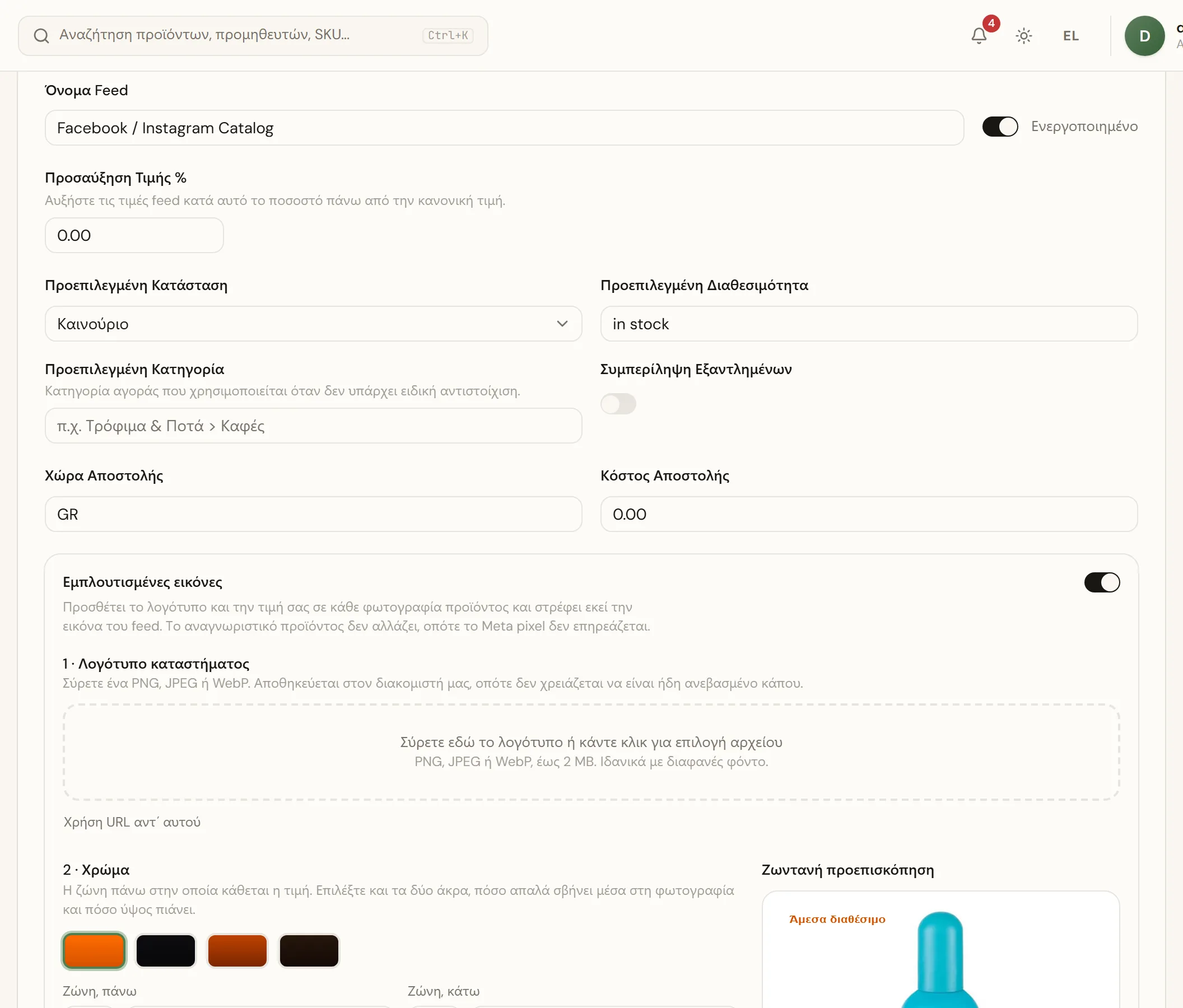
- Turn on the Creative Images toggle.
- Step 1 · Store logo: drag in your logo (PNG, JPEG, or WebP, up to 2 MB; ideally with a transparent background). Nothing else gets drawn without a logo.
- Choose how the logo is displayed: on a white pill, as a white knockout (needs a logo with transparency), or not at all.
- Step 2 · Color: set the two ends of the color band, how it fades, and its height.
- Step 3 · Typography and spacing: font, price/brand/badge text sizes, edge margin. Every size is a percentage of the image, so it holds up at any resolution.
- Pick a Layout and add the badges you want, with their style.
- Watch the live preview next to it, rendered against a real product from your feed.
- Click Generate preview to see actual images with your current settings.
- Click Save. Images are generated on the next sync or when you click Regenerate.
Good to know: the product identifier doesn't change when you turn on Creative Images, so your Meta pixel isn't affected.
Connecting the feed to a Meta catalog
For your images to show up in Facebook/Instagram ads, the feed needs to power a catalog in Meta Commerce Manager:
- Open Meta Commerce Manager and go into your catalog (or create a new one).
- Go to Catalog → Data sources.
- Add a new data source of type Data feed and paste the Feed URL from Vexel Sync's Feeds page (Copy URL).
- Set a refresh schedule for the feed in Meta (e.g. daily), so the catalog keeps updating automatically with new images, prices, and stock.
- Wait for the first fetch to finish; Commerce Manager shows how many products were imported and any row-level errors.
Notes
- Creative Images are available only for Facebook feeds.
- Skroutz rejects images with promotional text or watermarks, so the Skroutz feed always sends the plain product photo.
- Need help setting it up? Email hello@vexel.gr or call 231 777 3800.