

Syncing
Running a sync
Manually starting a sync needs the Pro or Business plan. On Starter, syncs only run on their Sync Schedule.
- Open the supplier → Open Sync.
- Click Start Sync.
- Watch the live progress. You can leave the page; the sync keeps running in the background.
For all suppliers at once: Overview → Sync All. To abort: Stop Sync.
The stages
Every sync goes through six stages:
| Stage | What it does |
|---|---|
| Fetching feed | Downloads the supplier's file |
| Transforming products | Applies your field mappings and transforms |
| Comparing changes | Detects new, changed, and discontinued products |
| Syncing to WooCommerce | Pushes the changes to your store |
| Processing images | Downloads and attaches product images |
| Cleaning up | Final housekeeping and logging |
Sync safety guard
A sync stops itself automatically (without applying anything) when something looks like a broken feed:
- The feed returned 0 products while the supplier already has products in your store.
- More than 20% of the supplier's active products would be marked "Discontinued" in this run.
When this happens the run is marked failed with a clear reason in the Activity Log. Check the feed and re-run the sync manually once it's fixed.
Category Review
The sync page shows new feed categories waiting for a decision. Their products do sync, but they get no WooCommerce category until you decide:
- Accept Suggestion: take the automatic match.
- Map Existing: pick a WooCommerce category yourself.
- Create New: create the category in WooCommerce.
- Dismiss: ignore this category.
See Categories for details.
History: the Sync Runs page
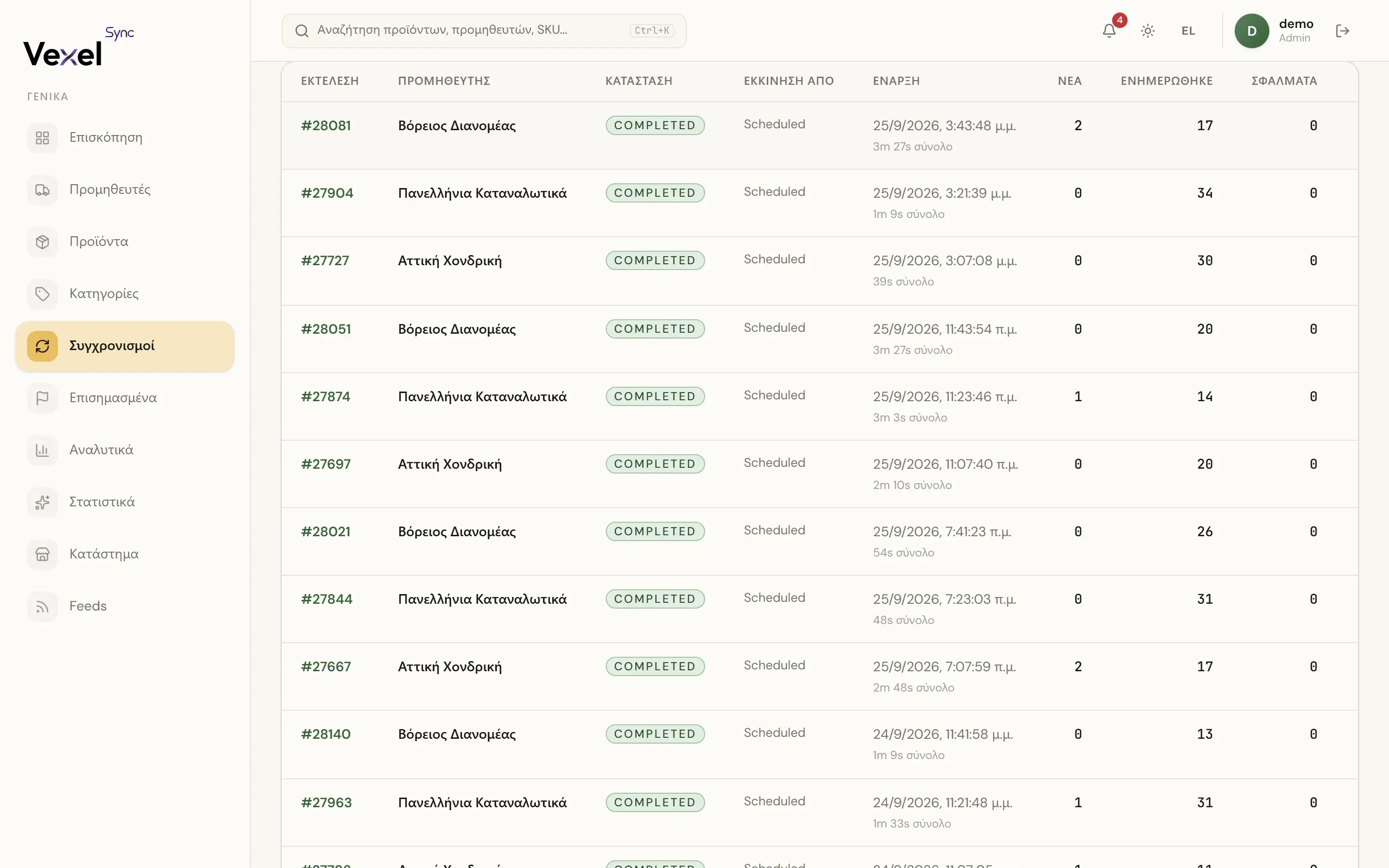
The Sync Runs page lists every run with its status, who started it, and a summary: New / Updated / Errors. A running sync can be aborted with Stop.
Sync run detail
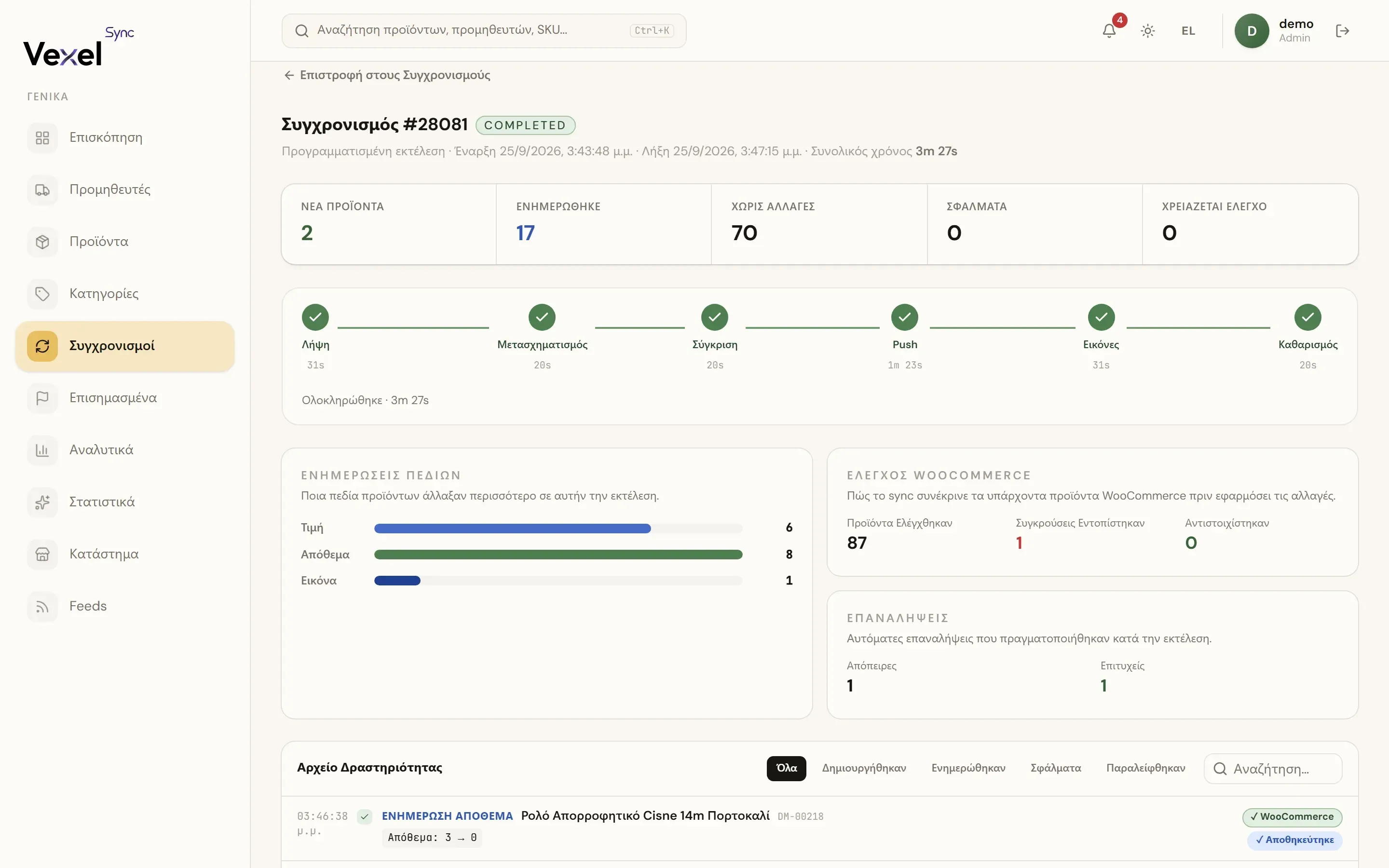
Click a run to see:
- Stats: New Products, Updated, No Changes, Errors, Needs Review.
- Field Updates: which product fields changed the most (price, stock, name, image…).
- WooCommerce Check: how many products were checked, how many conflicts were found.
- Retries: automatic retries on transient errors.
- Activity Log: every product processed, with filters and search.
Products marked "Needs Review" land in Flagged Items and wait for your decision.