

Suppliers
Each supplier has a feed (a product file in JSON, XML, CSV, or Excel) that Vexel Sync downloads or receives and syncs into your store.
Each supplier has a feed (a product file in JSON, XML, CSV, or Excel) that Vexel Sync downloads or receives and syncs into your store.
Haven't connected your store yet? Start with Connect your WooCommerce store.
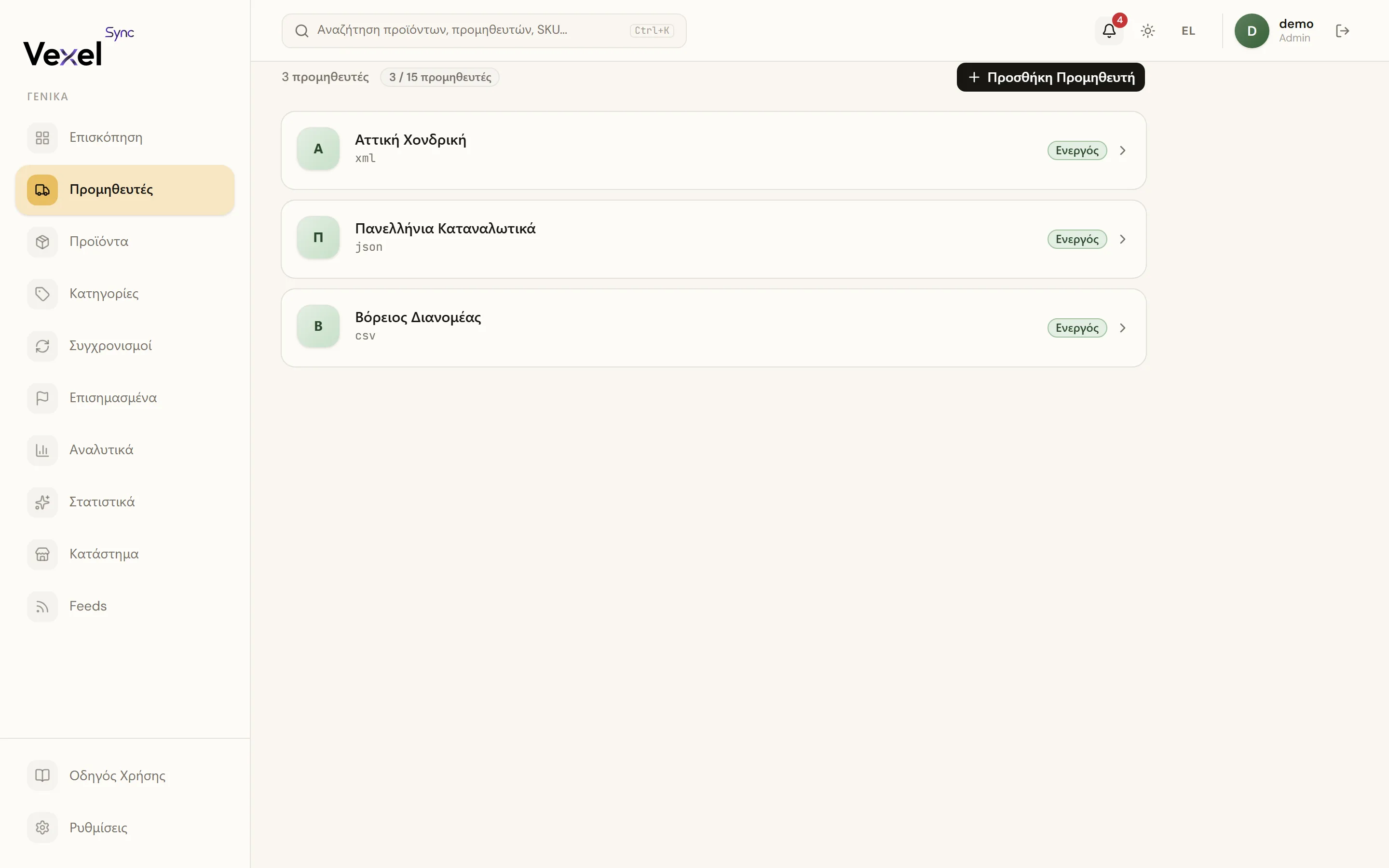
Adding a supplier: wizard
Click Add Supplier to open the 4-step guided wizard. Nothing is saved until the final step.
Step 1: Source
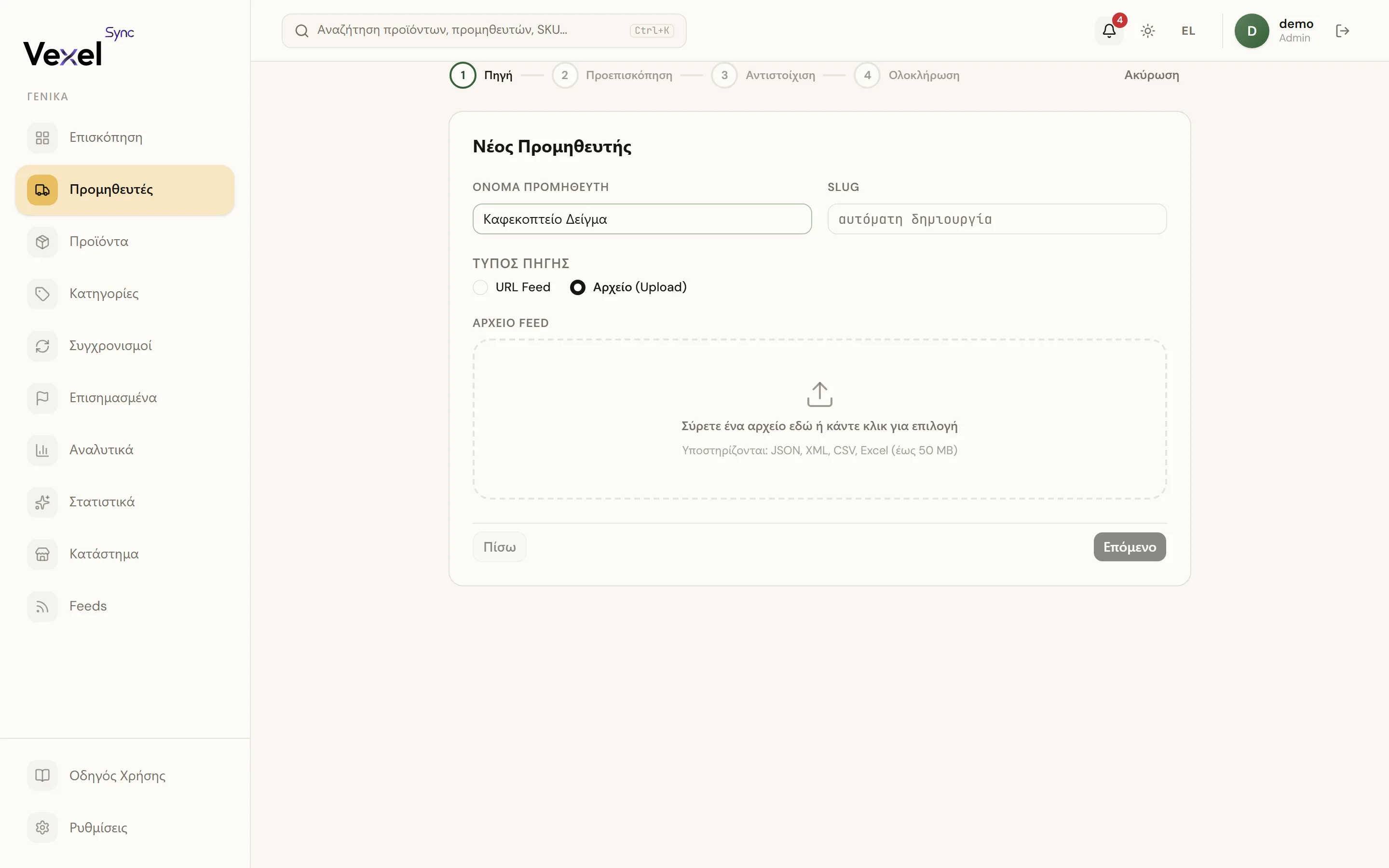
- Enter a Supplier Name (the Slug is auto-generated).
- Choose the source type:
- URL Feed: paste the feed URL and click Fetch & Preview. The system downloads and parses the feed live.
- File Upload: drag a file into the drop zone (or click to select). Supported formats: JSON, XML, CSV, Excel (up to 50 MB).
If the file or URL can't be parsed, you'll see an error with the detected problem.
Step 2: Preview
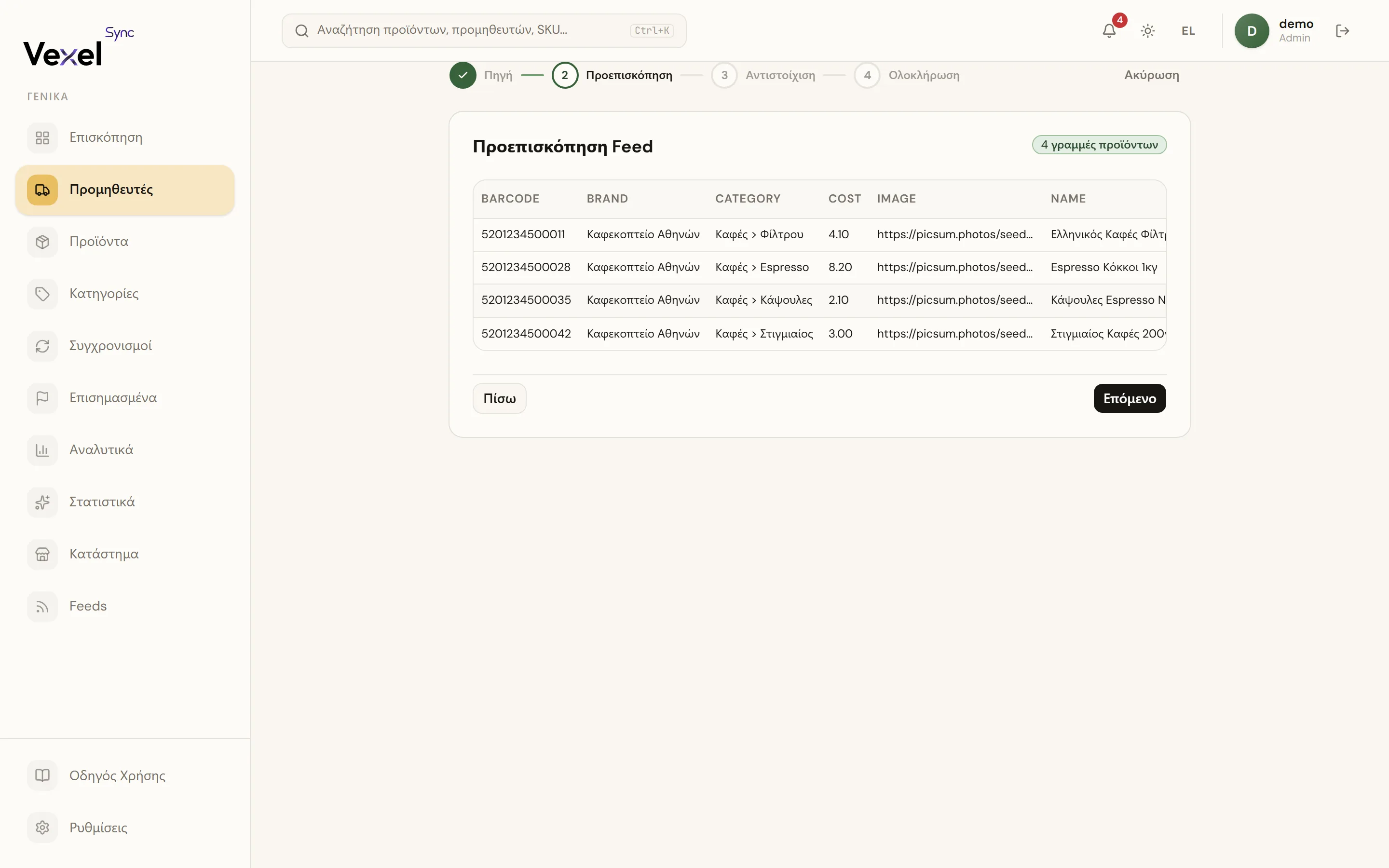
You'll see the first rows of the feed in a table, along with the total product count.
When the feed has multiple candidate product nodes (common in deeply nested XML or JSON), a node picker appears; each option shows the node path and how many rows it contains. Select a different node to re-preview with that path.
Step 3: Map Fields
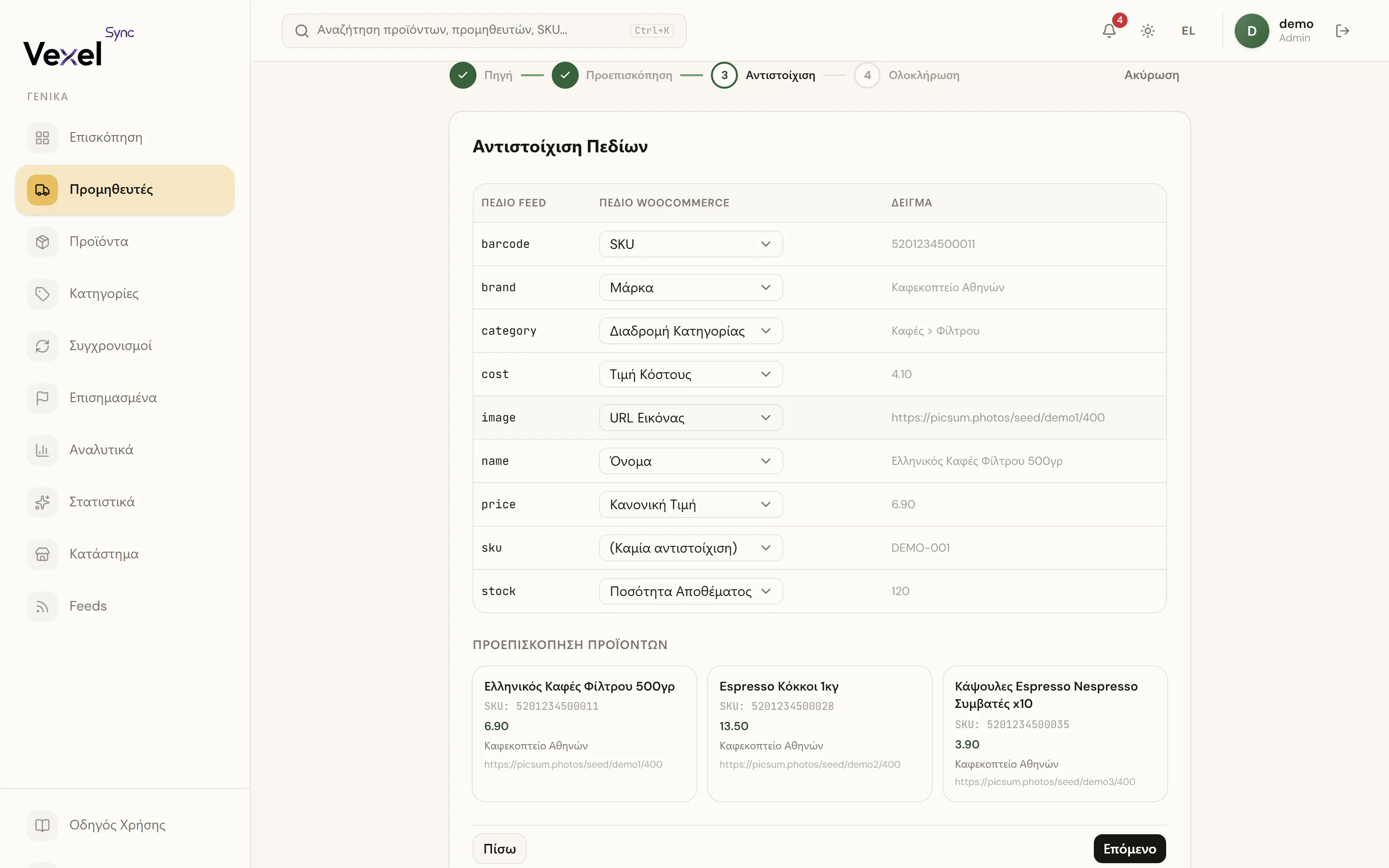
Map feed fields to WooCommerce fields. Fields are pre-filled based on their name and value (e.g. sku, price, τιμή).
- Required: SKU, Name, and at least one of Regular Price or Cost Price.
- A live preview renders 2-3 products from the actual feed rows using your current mappings.
Step 4: Finish
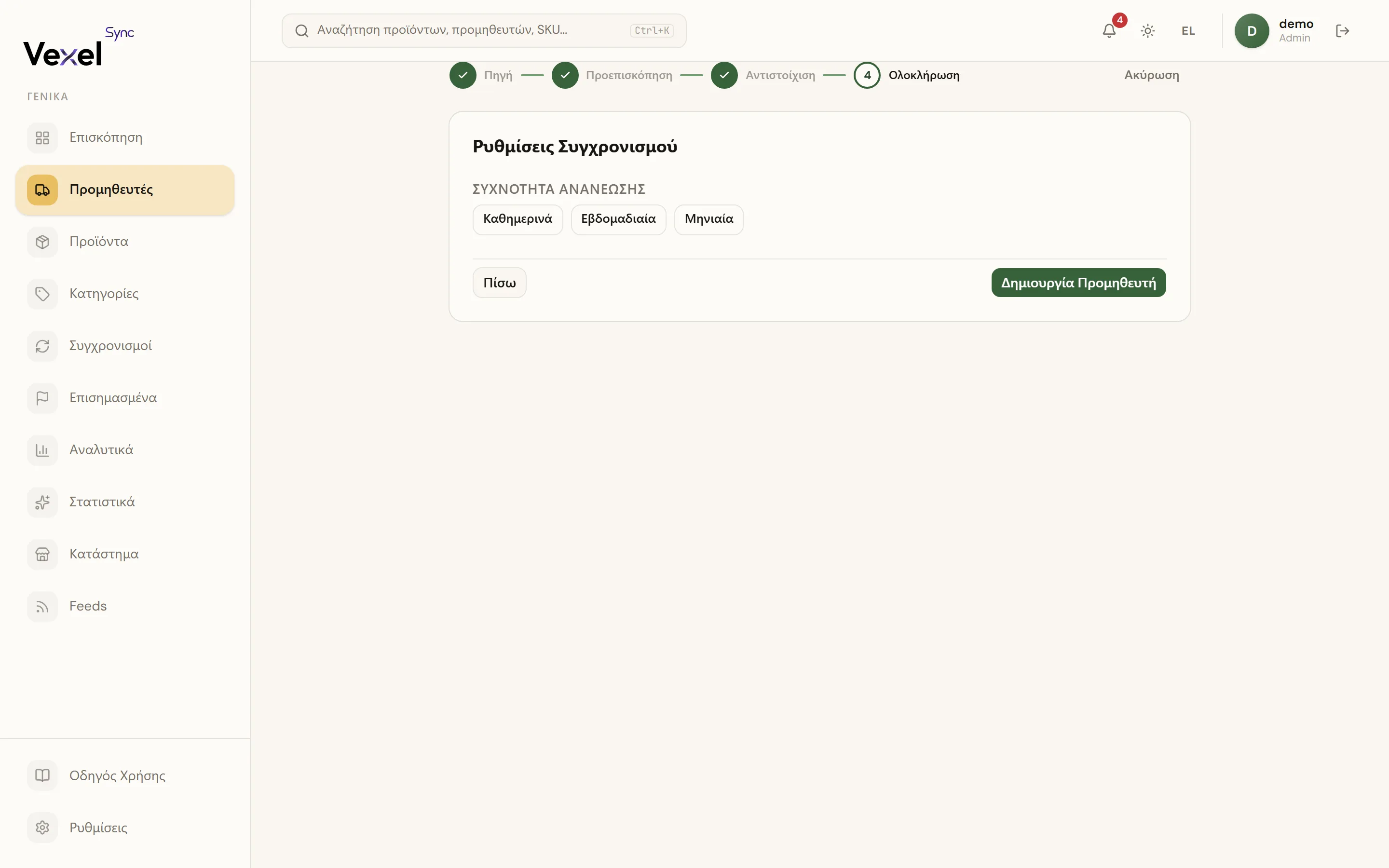
- URL feed: pick a Sync Schedule (e.g. every hour, once daily) or leave it as "Manual runs only". Your plan sets how often it can run: Starter and Pro up to every hour, Business up to every 15 minutes (see Plans & Pricing).
- Upload feed: pick an Upload Cadence (Daily / Weekly / Monthly). You'll get a reminder notification when a feed is overdue.
Click Create Supplier. For upload suppliers, the app will ask whether you want to start the first sync right away.
Upload suppliers: re-uploading a feed
On the supplier's Configuration tab:
- Click Upload New File to open the upload zone.
- Optionally tick Start sync after upload to trigger a sync right away.
- The last 3 uploaded files show up in the Feed Files history table (filename, row count, size, date). Older files are pruned automatically.
To change the upload cadence, edit the Upload Cadence field and click Save.
The supplier page
Four tabs:
Configuration
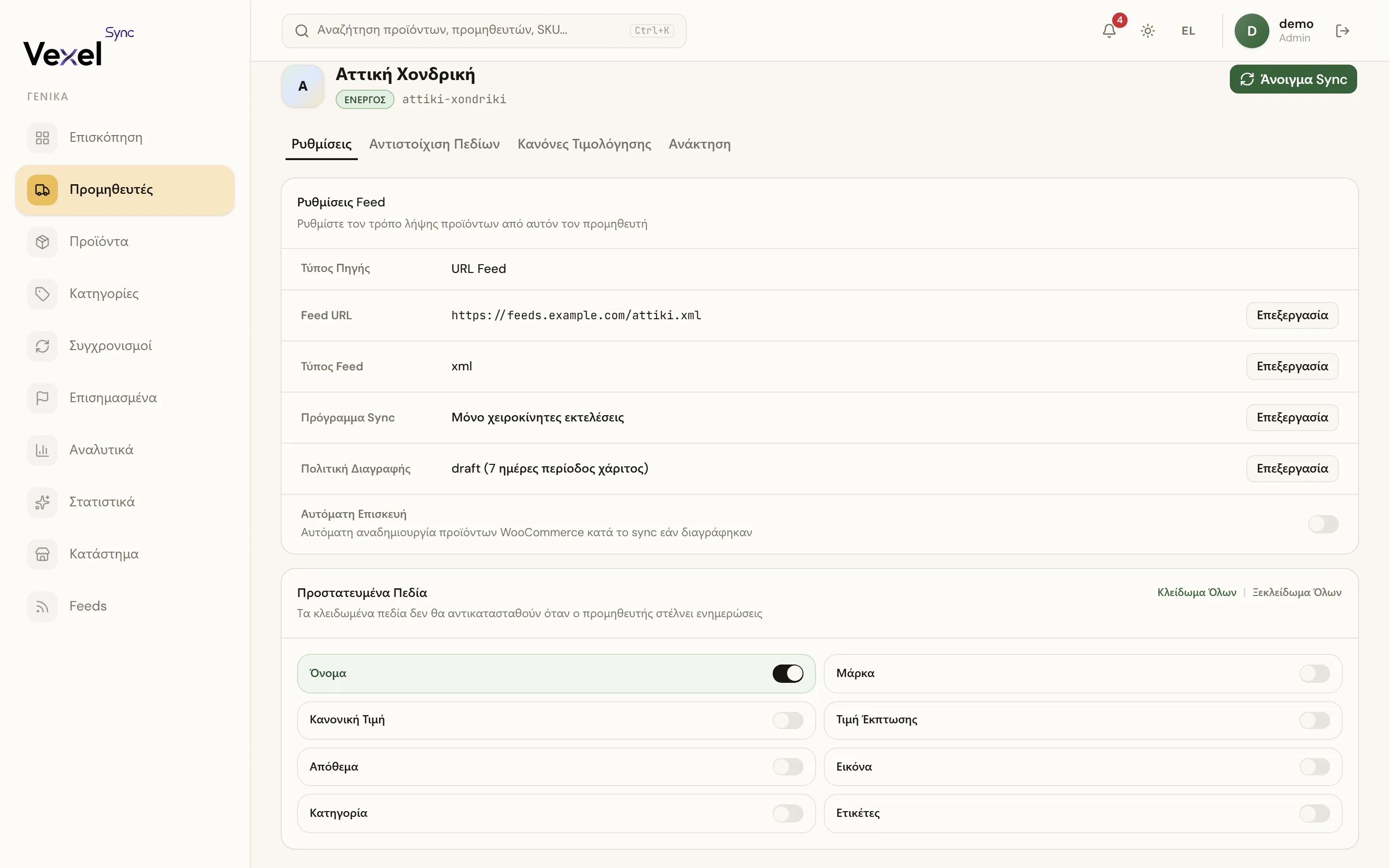
- Source Type: URL Feed or File Upload.
- Feed URL / Feed Type: for URL feeds, where the feed comes from and its format.
- Upload Cadence: for upload feeds, how often you commit to uploading a new file.
- Sync Schedule: automatic runs at a fixed interval, or "Manual runs only" (manually starting a sync with Start Sync / Sync All needs the Pro or Business plan; Starter syncs only on its schedule).
- Deletion Policy: what happens when a product disappears from the feed. The grace period (in days) prevents deletions caused by temporary feed gaps.
- Auto-Repair: if a product was accidentally deleted from WooCommerce, the next sync recreates it.
Field Mapping
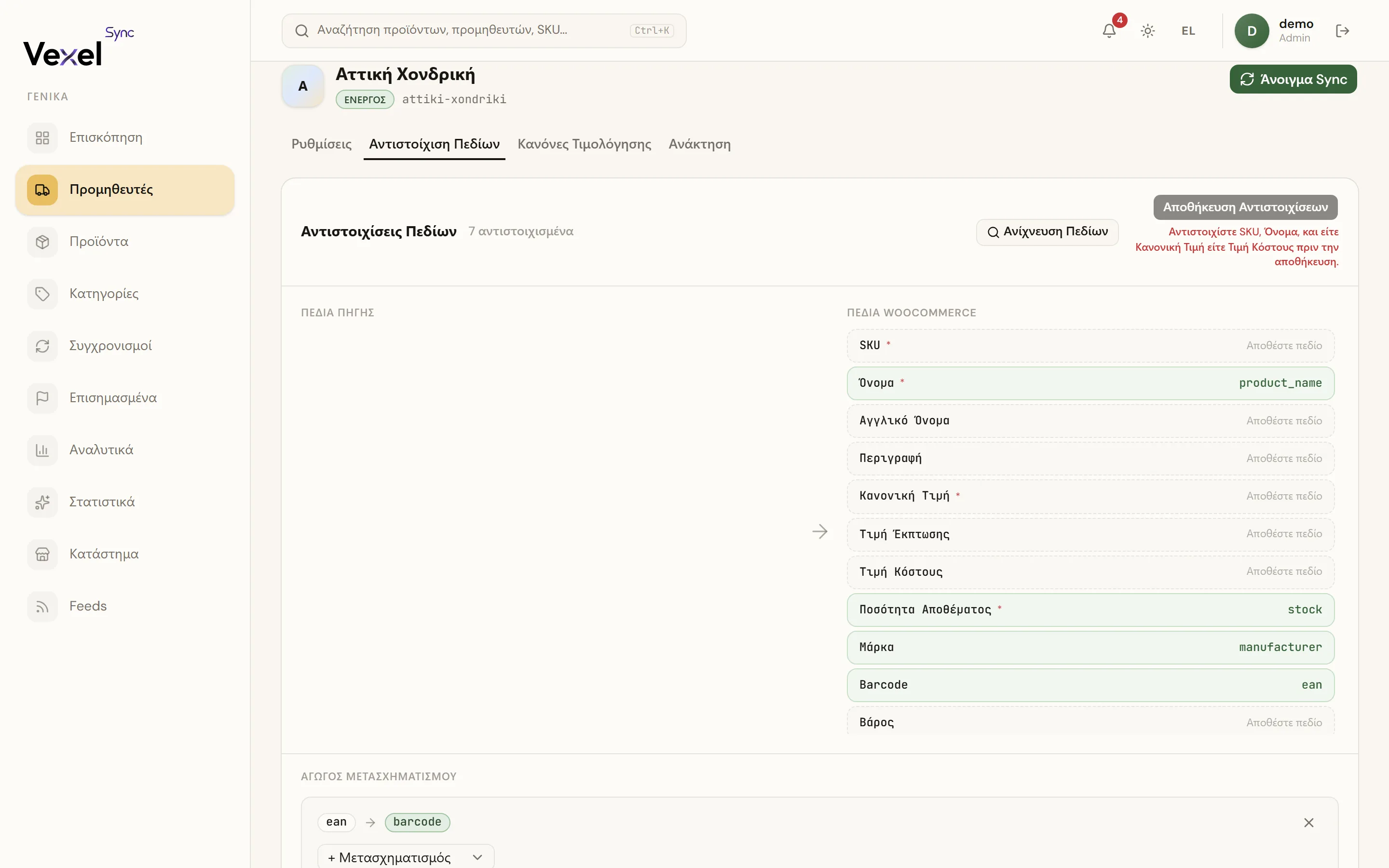
This is where you tell the system which feed field maps to which WooCommerce field (name, price, stock, image, etc.):
- Click Detect Fields: the system reads the feed and lists the available fields.
- Drag each field from Source Fields onto the matching WooCommerce Fields slot.
- Optionally add a Transform (e.g. title cleanup, price conversion) to the pipeline.
- Click Save Mappings.
Pricing Rules
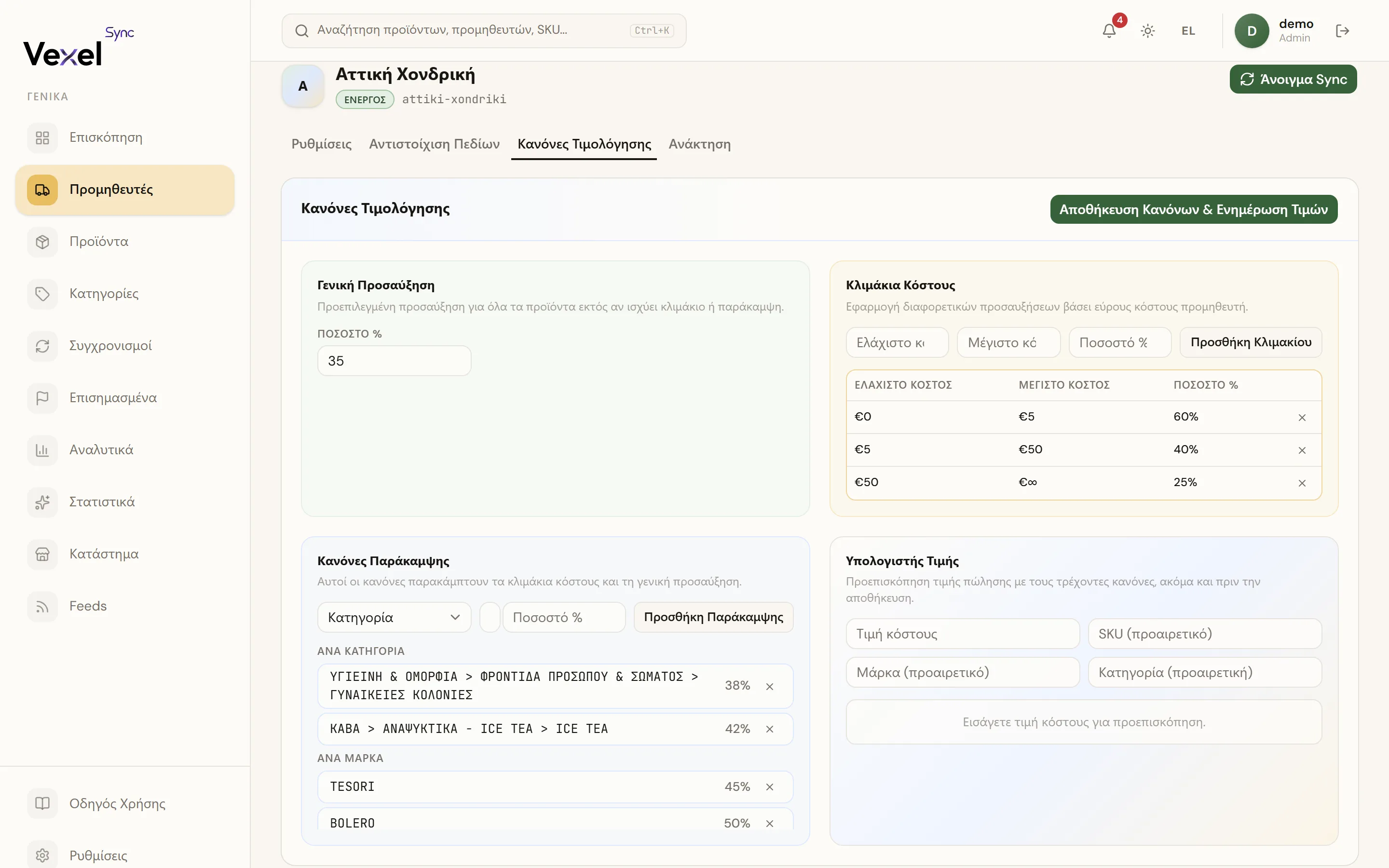
Markups and price overrides for this supplier. See Pricing.
Recovery
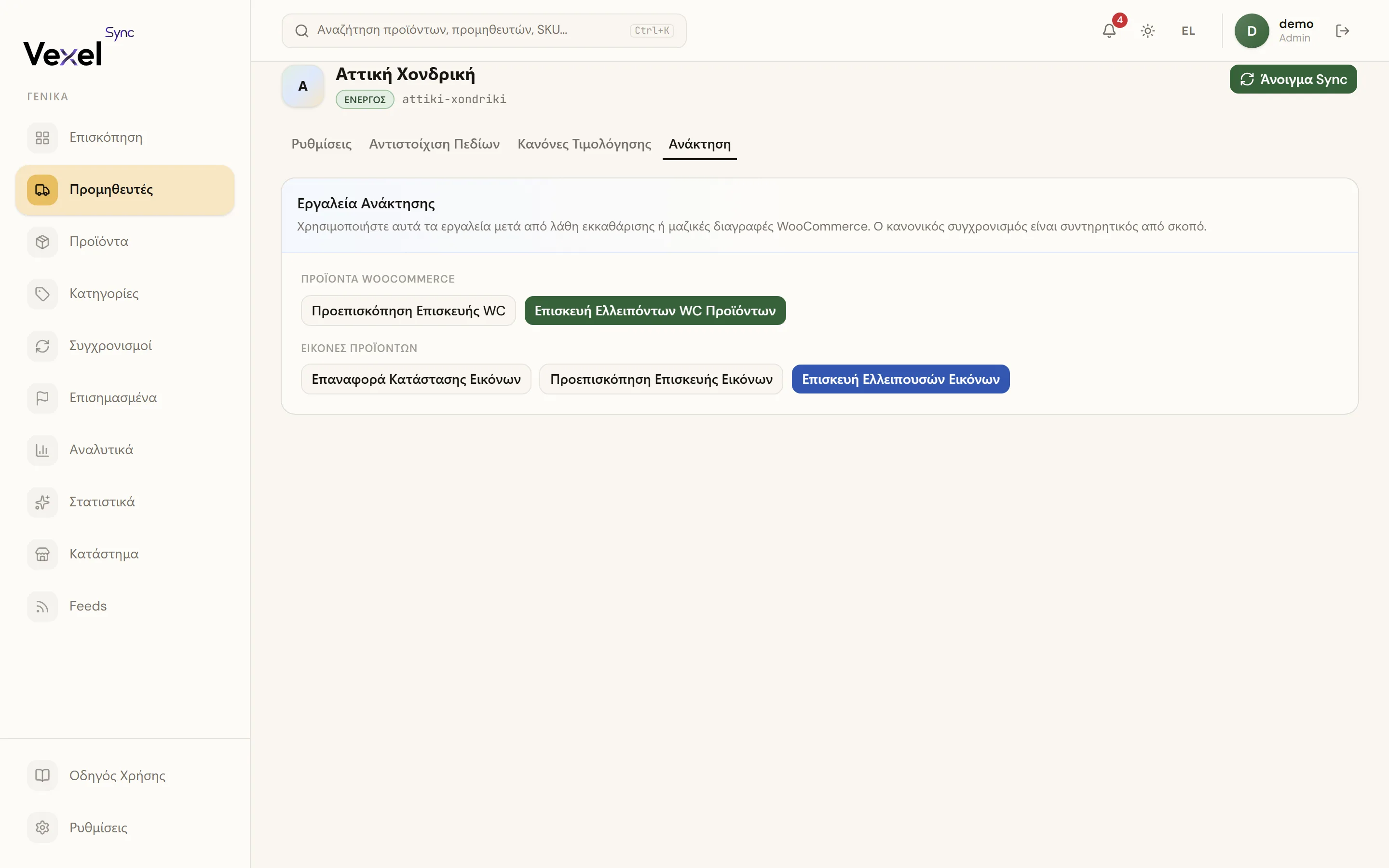
Repair tools for after mistakes (e.g. bulk deletions in WooCommerce):
- Repair Missing WC Products: relinks products with an exact SKU match and recreates the rest.
- Repair Missing Product Images: re-uploads missing images.
Always click Preview WC Repair or Preview Image Repair first to see exactly what will happen before running a repair.
Protected Fields
Lock fields so supplier updates never overwrite them. Useful when you're keeping your own price, brand, category, or tags (the name, description, and image are never overwritten by a sync anyway). Available: Name, Brand, Regular Price, Sale Price, Stock, Image, Category, Tags. There are also Lock All / Unlock All buttons.
You can also protect fields per product. See Products.
Danger Zone
- Deactivate Supplier: syncs stop; you can reactivate it later.
- Delete Supplier: permanently removes the supplier and all its data (products, sync history, mappings, pricing). Cannot be undone.